
Ask Promptly
Updated 2026-10-30
Ask Promptly is the assistant built into your dashboard. Tell it what you want changed, in your own words, and it makes the edit on your site. There's nothing to learn — if you can send a text message, you can use it.
Open it
Look for the round sparkle button in the bottom-right corner of every dashboard screen and click it. You can also click Ask Promptly on the Overview page, which has a few suggestions to get you started.
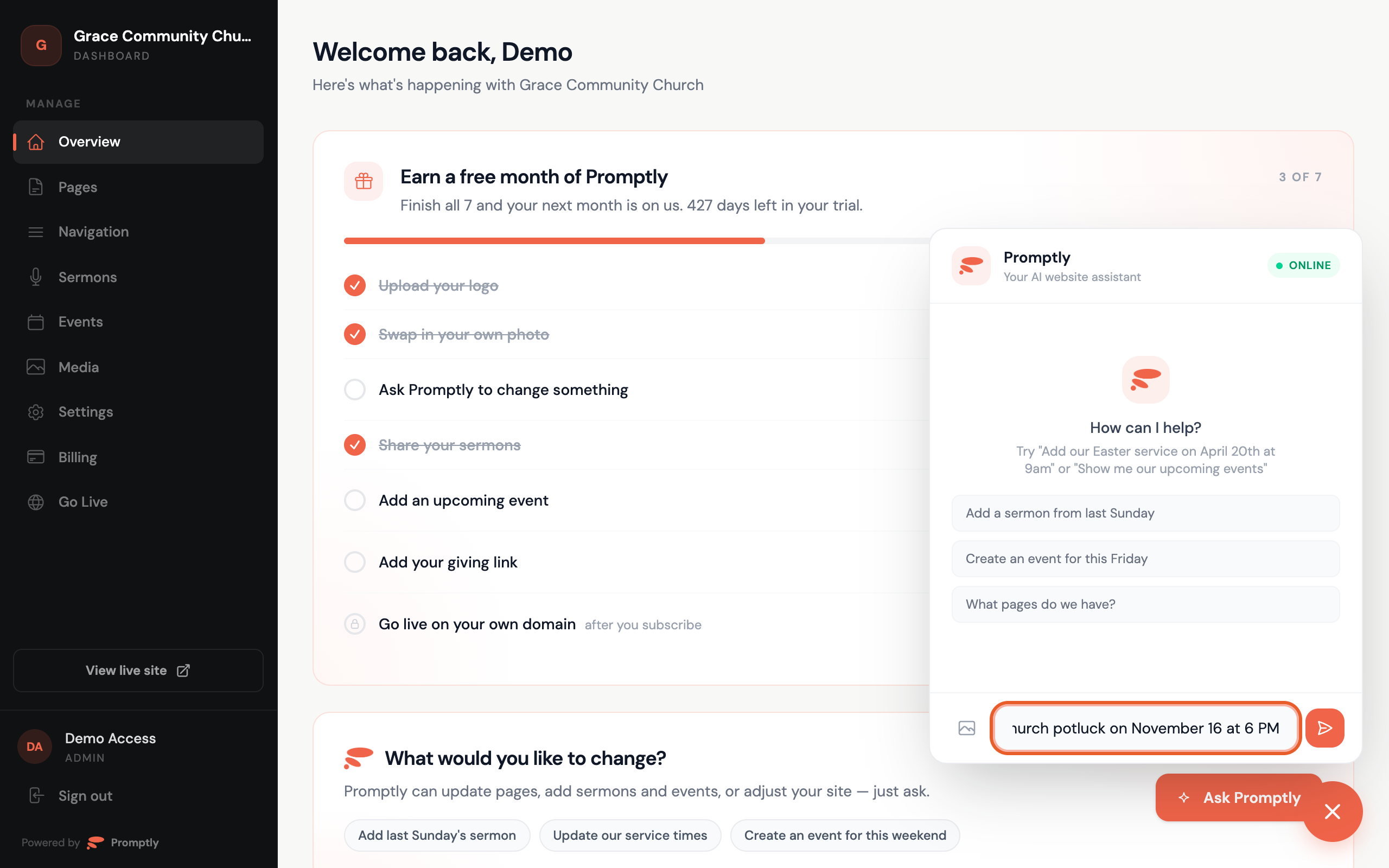
Type your request and press Enter. Promptly makes the change and tells you what it did.
What you can ask for
- Change text — "Change our Sunday service time to 10:30 AM" or "Rewrite the About page to mention our food pantry."
- Add an event or a sermon — "Add a church potluck on November 16 at 6 PM in the fellowship hall."
- Swap a photo — attach the new photo and say "Use this on the home page instead of the hero image."
- Change your logo — say "Here's our new logo" and attach the file.
- Edit your navigation — "Move Events before Sermons in the menu."
- Turn on your livestream — "Turn on our livestream" and share your YouTube channel.
- Save your giving info — "Our giving link is https://…" or "We take cash and checks on Sunday mornings."
If something isn't clear, Promptly asks a quick question before it changes anything.
Attach a photo
You can send Promptly a photo to use on your site:
- Drag a photo into the chat, paste one, or click the photo icon next to the message box and pick a file.
- Wait for Photo ready to appear.
- Add a note about what to do with it (like "Put this on our Kids page"), then send.
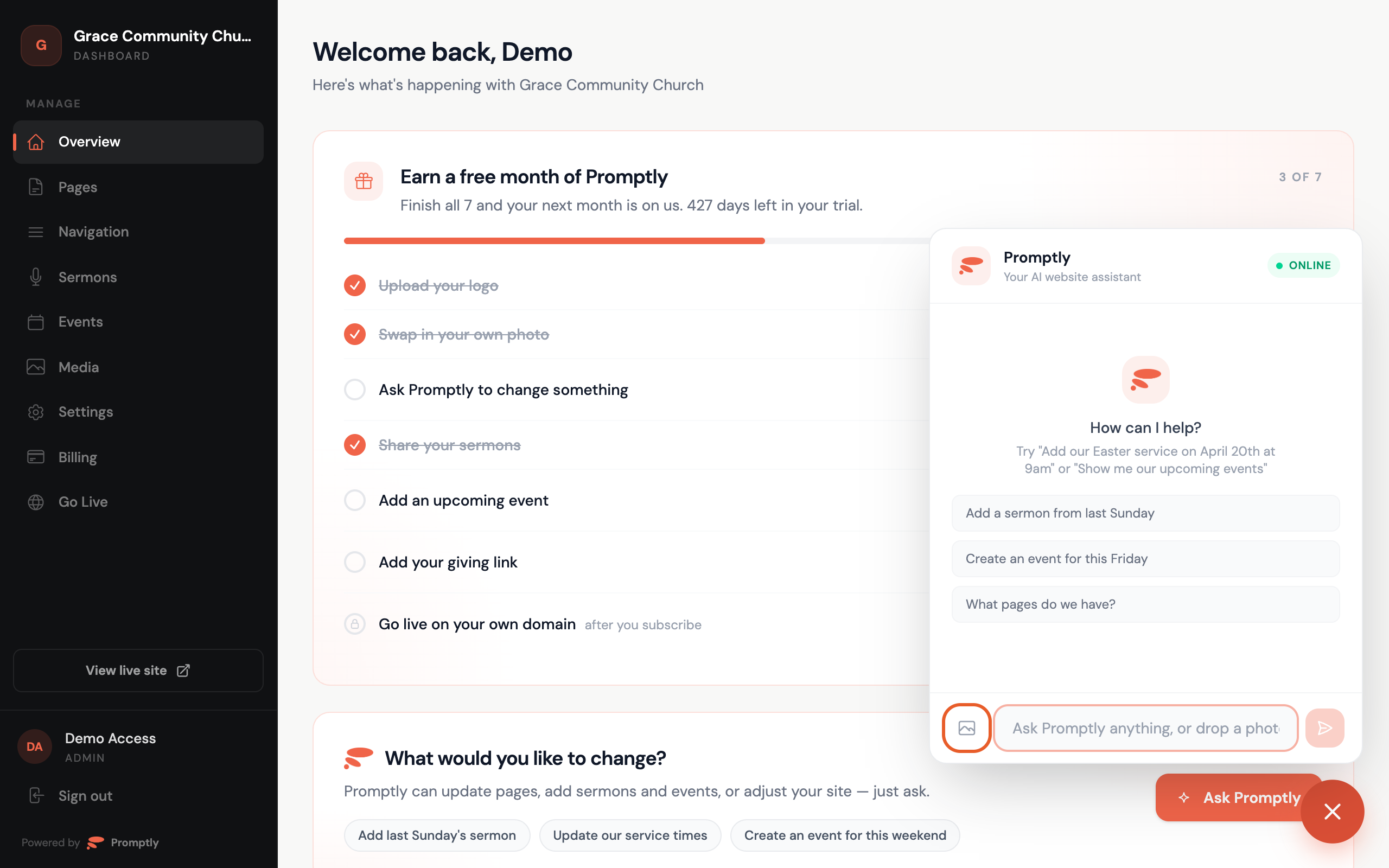
Photos work as JPG, PNG, WebP or GIF.
Tips
- Be specific about where: "on the Contact page" beats "somewhere on the site."
- One request at a time works best. You can always send another.
- Changes show up on your live site right away. Not what you wanted? Just ask Promptly to change it again.
- For one-off edits you'd rather do by hand, see Edit page text or Add an event.