
Tour of your dashboard
Updated 2026-09-22
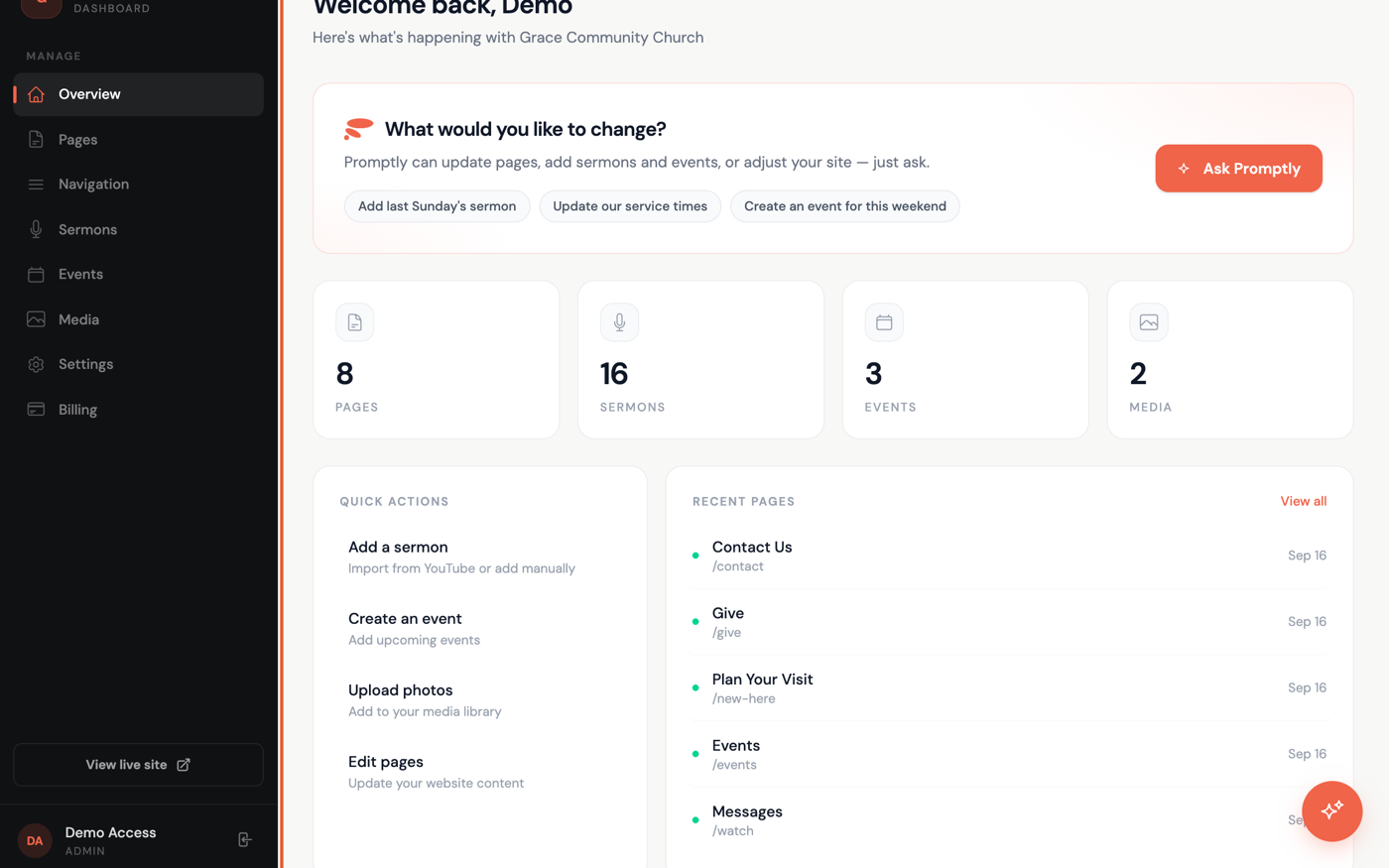
Everything you do in Promptly starts here. The sidebar on the left gets you to every part of your site, and the sparkle button in the bottom-right corner of every screen opens your AI assistant — ask it to make almost any change instead of hunting through menus.
What's in the sidebar
- Overview — your at-a-glance dashboard: counts of Pages, Sermons, Events, and Media, a Quick Actions card for common tasks like adding a sermon or creating an event, plus your most recently updated pages.
- Pages — add, edit, publish, and delete every page on your site.
- Navigation — reorder, rename, or add links in your site's menu.
- Sermons — add sermons manually or import them automatically from YouTube.
- Events — create and manage upcoming events.
- Media — your photo and image library.
- Settings — your church's contact info, service times, social links, and giving — plus a view of your branding.
- Go Live — connect your own web address, like gracechurch.org. See Connect your own domain.
- Billing — your subscription and payment details.
Ask Promptly instead of clicking around
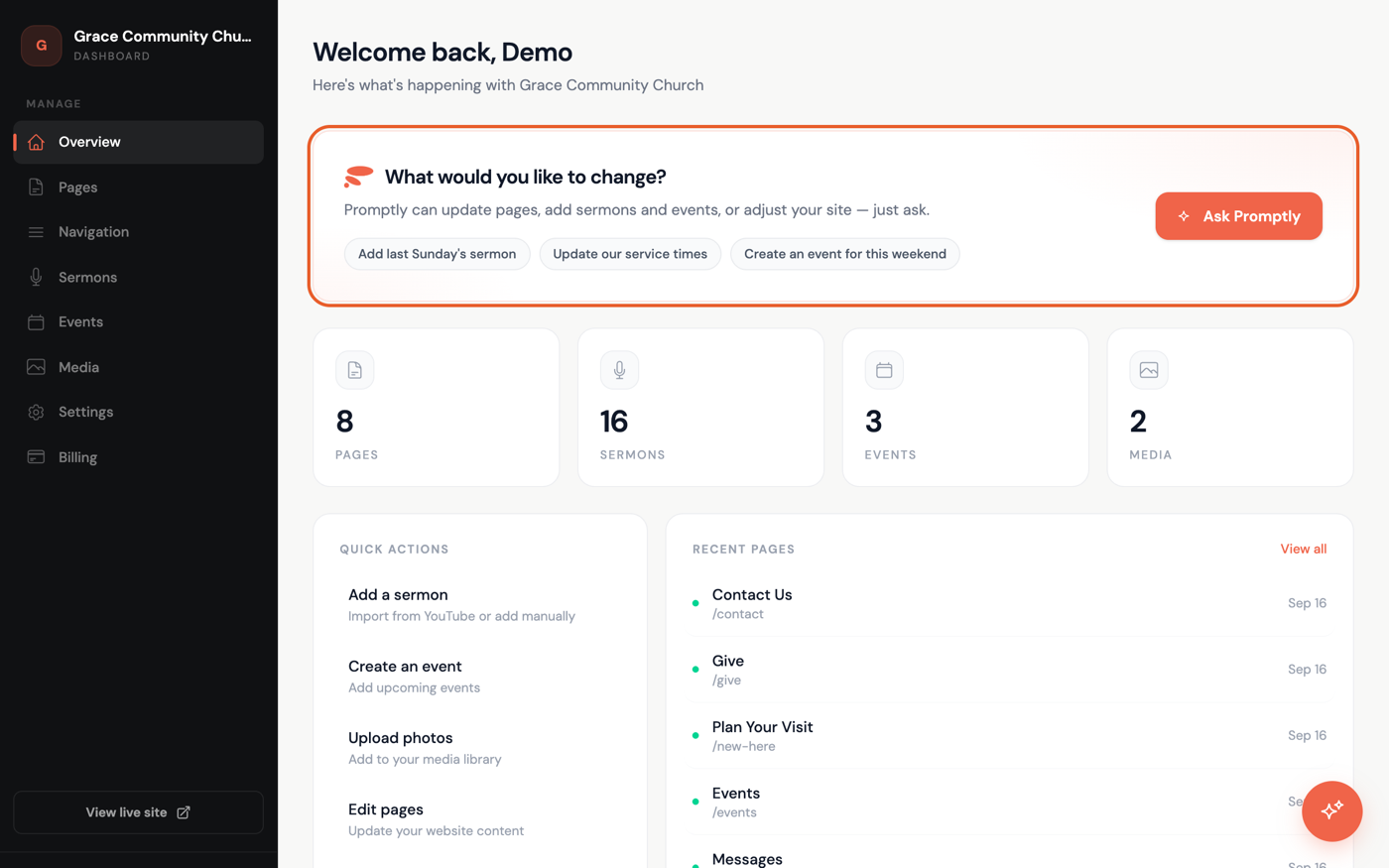
On the Overview page, the Ask Promptly card doesn't have its own text box — click a suggestion like "Update our service times" to drop it into the chat, then send it, or click Ask Promptly and type your own request in the chat that opens. The same assistant is always one click away: look for the round button in the bottom-right corner of any screen in the dashboard. See Ask Promptly for what to ask and how to attach a photo.
Click View live site near the bottom of the sidebar any time to see your changes on your real, published site.