
Connect your own domain
Updated 2026-11-06
When you're ready to move your site to your church's own address — like gracechurch.org — you can do it yourself from the Go Live page in your dashboard sidebar. Promptly tells you exactly what to change, and shows you when it's working.
Before you start
- You can connect your domain during your trial. No plan needed to go live. Choose a plan before your trial ends to keep your site on it — if the trial ends first, your domain shows a paused page until you subscribe (see What happens after your trial).
- You need to own the domain. If you don't yet, see Buying a domain.
- Only church admins can connect a domain.
- You'll need to sign in to wherever the domain is managed (your registrar or DNS provider). DNS is the set of settings that tells the internet where your address points.
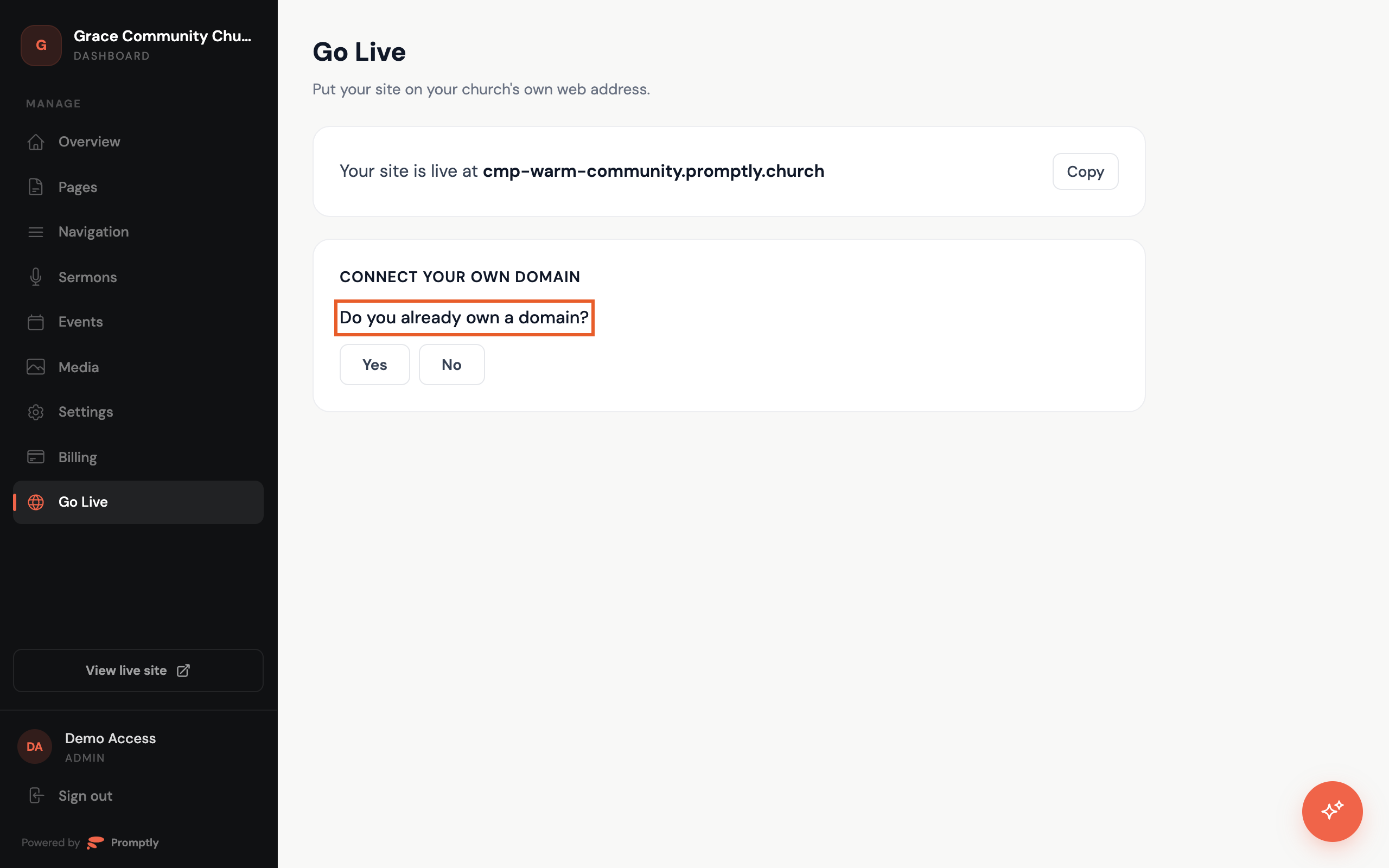
Connect your domain
- Click Go Live in the sidebar.
- Under "Where are you starting from?", choose We have a domain and can sign in to it.
- Type your domain in the Your domain box, like
gracechurch.org. - Click Connect domain.
A subdomain like grace.diocese.org works too. In that case you'll only need to add a single record.
Add the DNS records
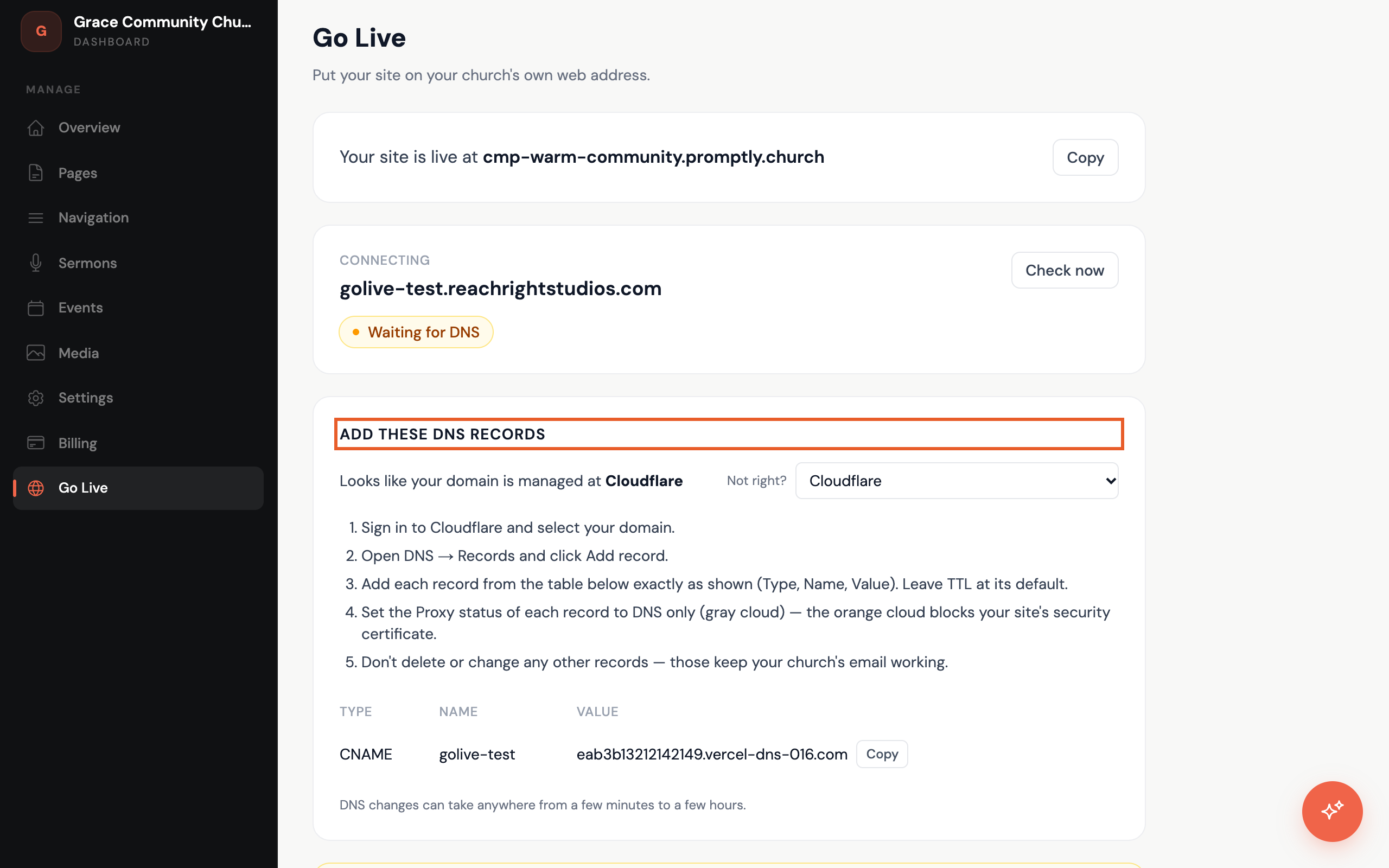
After you connect, the page shows what to change.
- Look for "Looks like your domain is managed at …" — Promptly detects where your domain lives and shows steps for that provider. If it's wrong, use the Not right? menu to pick yours. If we can't tell, you'll be asked to pick your provider from the list.
- Follow the numbered steps on the page.
- In the records table, you'll see a Type, Name, and Value for each record. Add them exactly as shown. The Copy button next to each Value saves you from typing it.
Three things to know first
- Don't delete your other DNS records. Those keep your church's email working.
- Your old website stops showing once this takes effect. Avoid switching right before a service.
- Using Cloudflare? Set each record to "DNS only" (the gray cloud, not orange).
How long it takes
DNS changes can take anywhere from a few minutes to a few hours. You can leave the page open and it updates itself, or click Check now to check right away. The status will move from "Waiting for DNS" to "Found it — securing your site," and then you're live.
You don't have to watch it. Promptly emails you when your site is live. If DNS still isn't set up after 2 days, we send one reminder.
If the status says "Still not connected — we've paused automatic checks," double-check the records against the table and click Check now once they're fixed.
Want us to help?
Click Need help? We'll do it with you and we'll reach out within one business day.
You're live
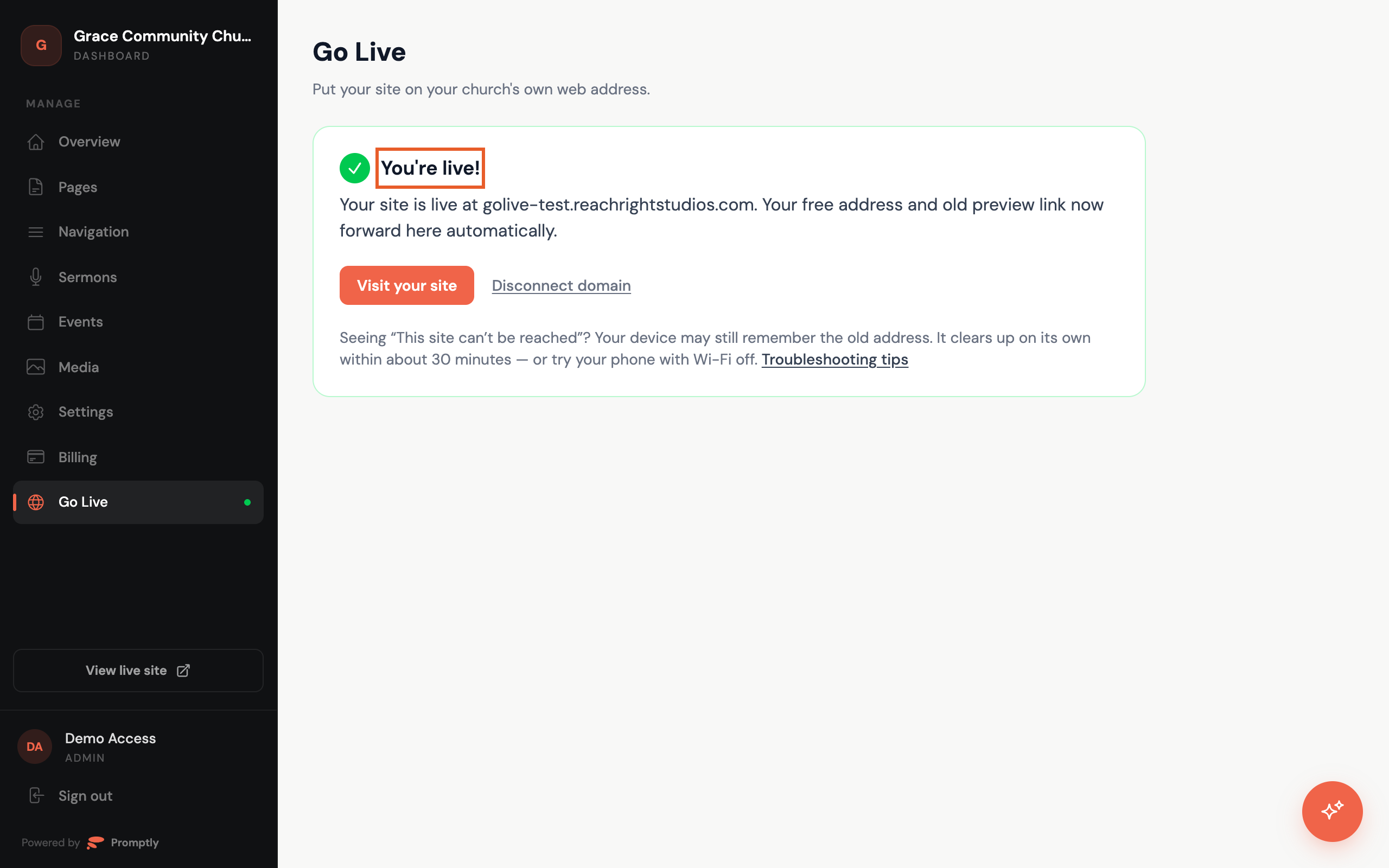
When the page says "You're live!", your site is running on your own domain. Your free address and old preview link now forward there automatically. Click Visit your site to take a look.
If your browser says "This site can't be reached" even though the page says you're live, your computer is remembering an old answer from before your DNS records existed. It clears up on its own within about 30 minutes. Try a different device or your phone (off Wi-Fi) to see it right away.
Changing or disconnecting your domain
Each church can have one custom domain at a time. To switch to a different one, click Disconnect domain and confirm. Your site goes back to your free address, and you can connect another domain right away. Disconnecting doesn't delete anything from your site.