
Add your giving link
Updated 2026-10-30
Your site's Give page and Give buttons send people to wherever your church takes gifts. Add your link once and it shows up everywhere. If your church doesn't give online, you can share other ways to give instead.
Add your online giving link
- In the dashboard sidebar, click Settings, then find the Giving card and click Edit.
- Type your giving service in Provider (for example, Tithe.ly, Pushpay, or Planning Center).
- Paste your giving page address into URL.
- Click Save.
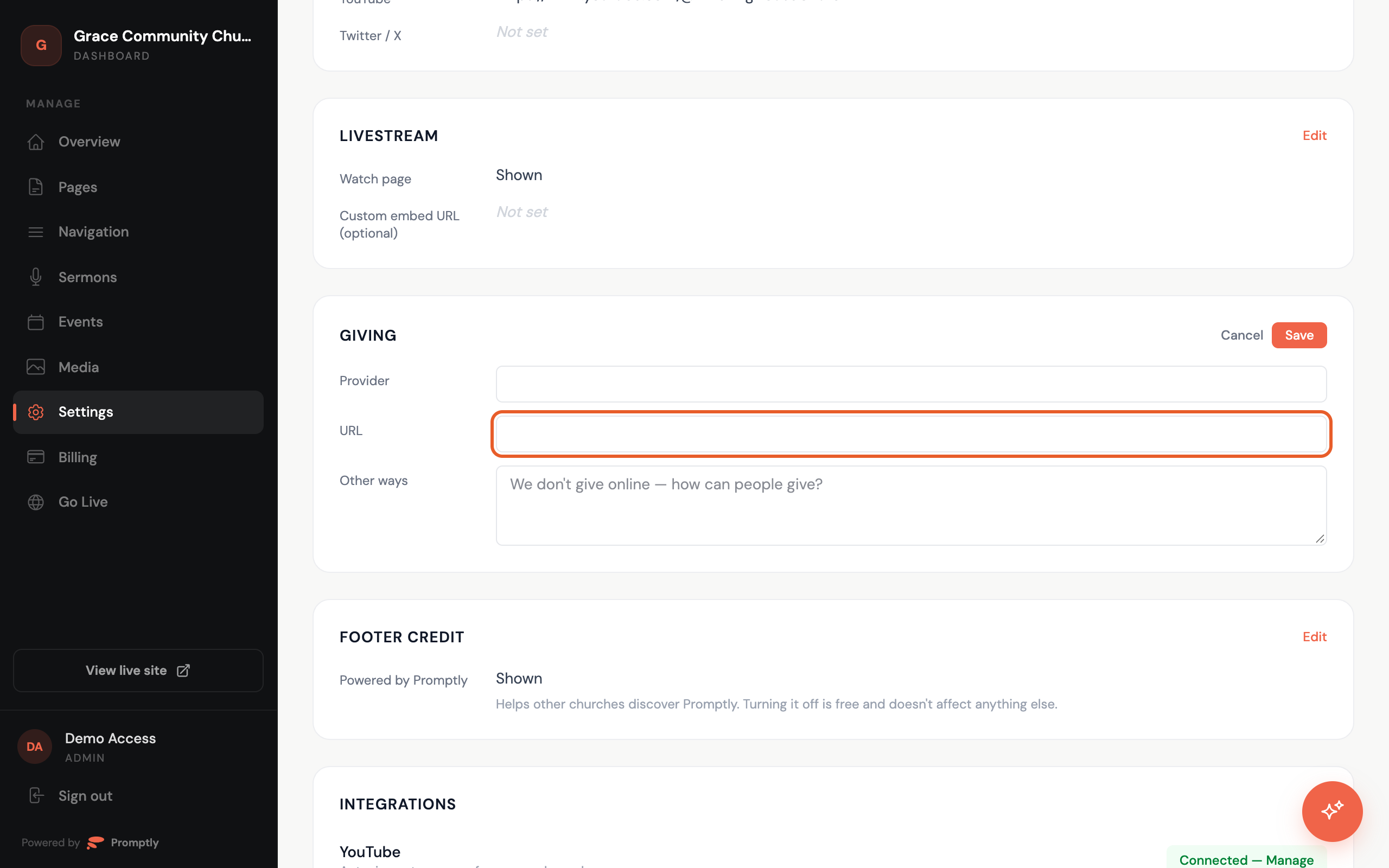
Your Give buttons start using the new link right away. Click one on your live site to make sure it opens the page you expect.
If you don't give online
Not every church has an online giving page, and that's fine. In the same Giving card, use the box labeled Other ways. While it's empty, it prompts "We don't give online — how can people give?"
- Click Edit on the Giving card.
- Write a short note about how people can give — for example, "Cash or check in the offering plate on Sundays, or mail checks to 123 Main St." You have up to 500 characters.
- Click Save.
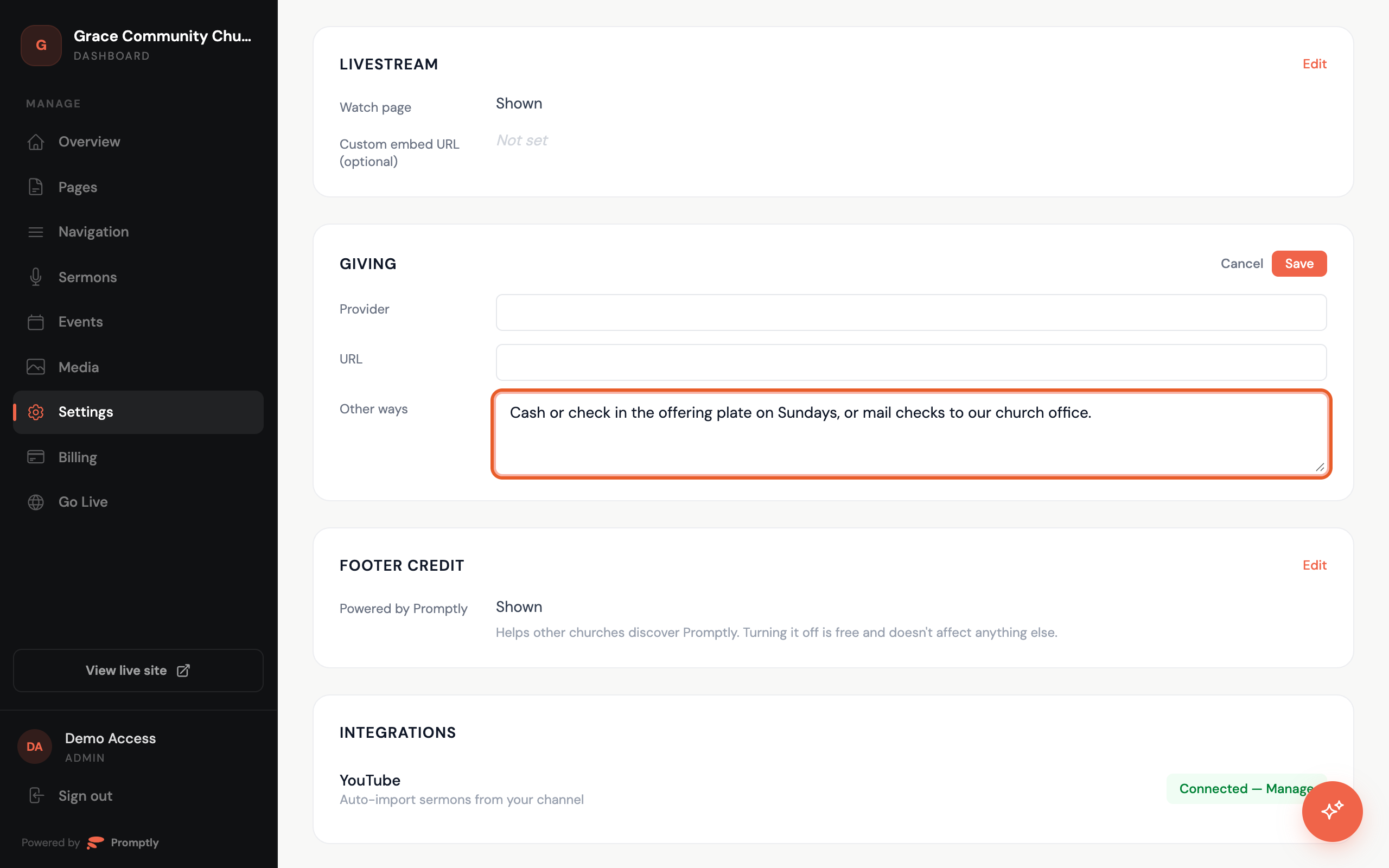
When your church has no giving link, the Give page shows a Ways to give section with your note instead of a Give button. If you add an online link later, the link takes over.
Prefer to skip the form? Open Ask Promptly and say something like "Our giving link is https://…" — see Ask Promptly.