
Change your service times
Updated 2026-09-22
Your service times aren't just a list — they show up on your homepage, in the footer, and on your Visit page, and they're what tells your livestream when it's about to go live. Update them once here and every one of those spots updates automatically.
Open the Service Times card
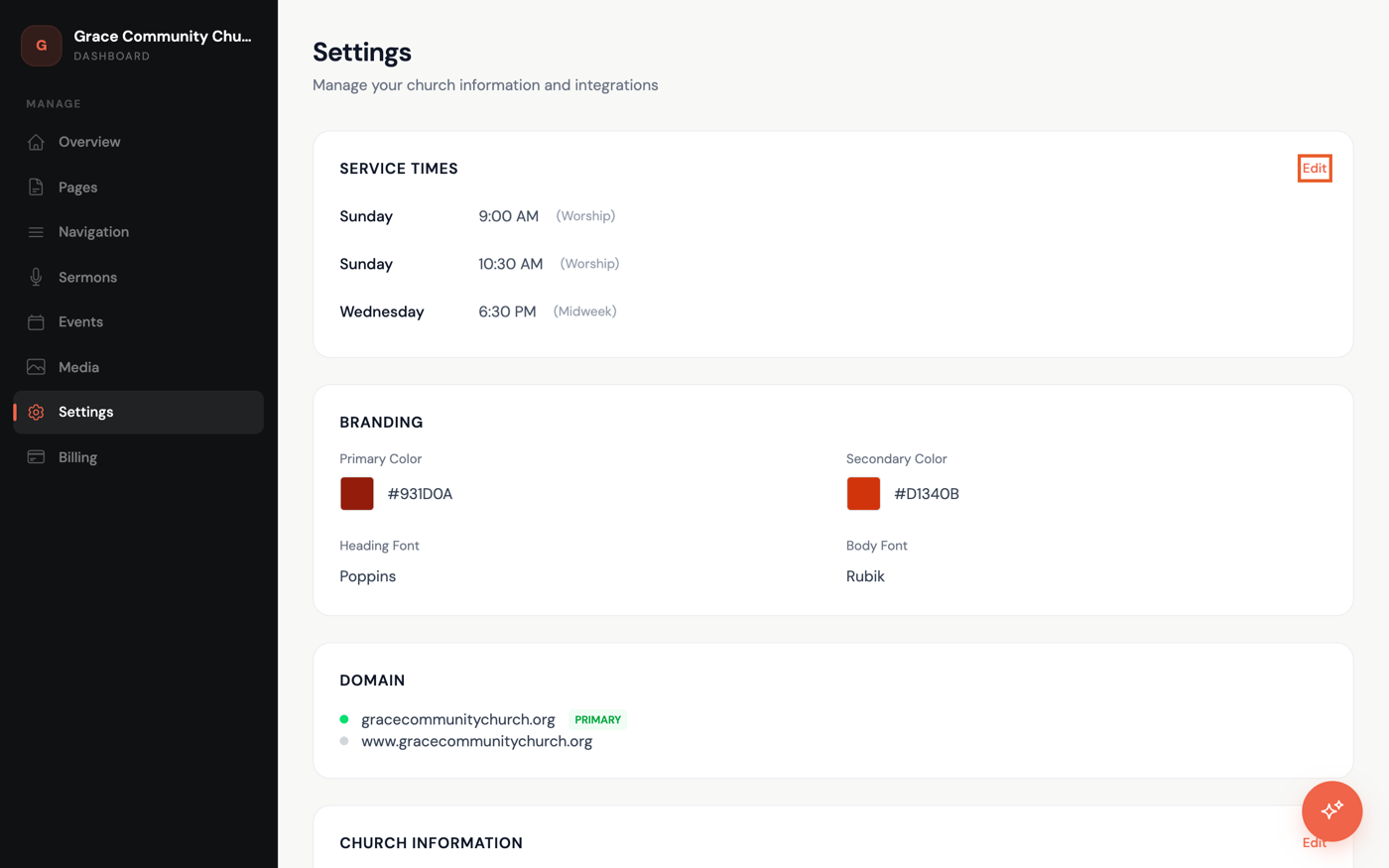
- In the dashboard sidebar, click Settings.
- Find the Service Times card near the top of the page and click Edit in its top-right corner.
Update your days, times, and labels
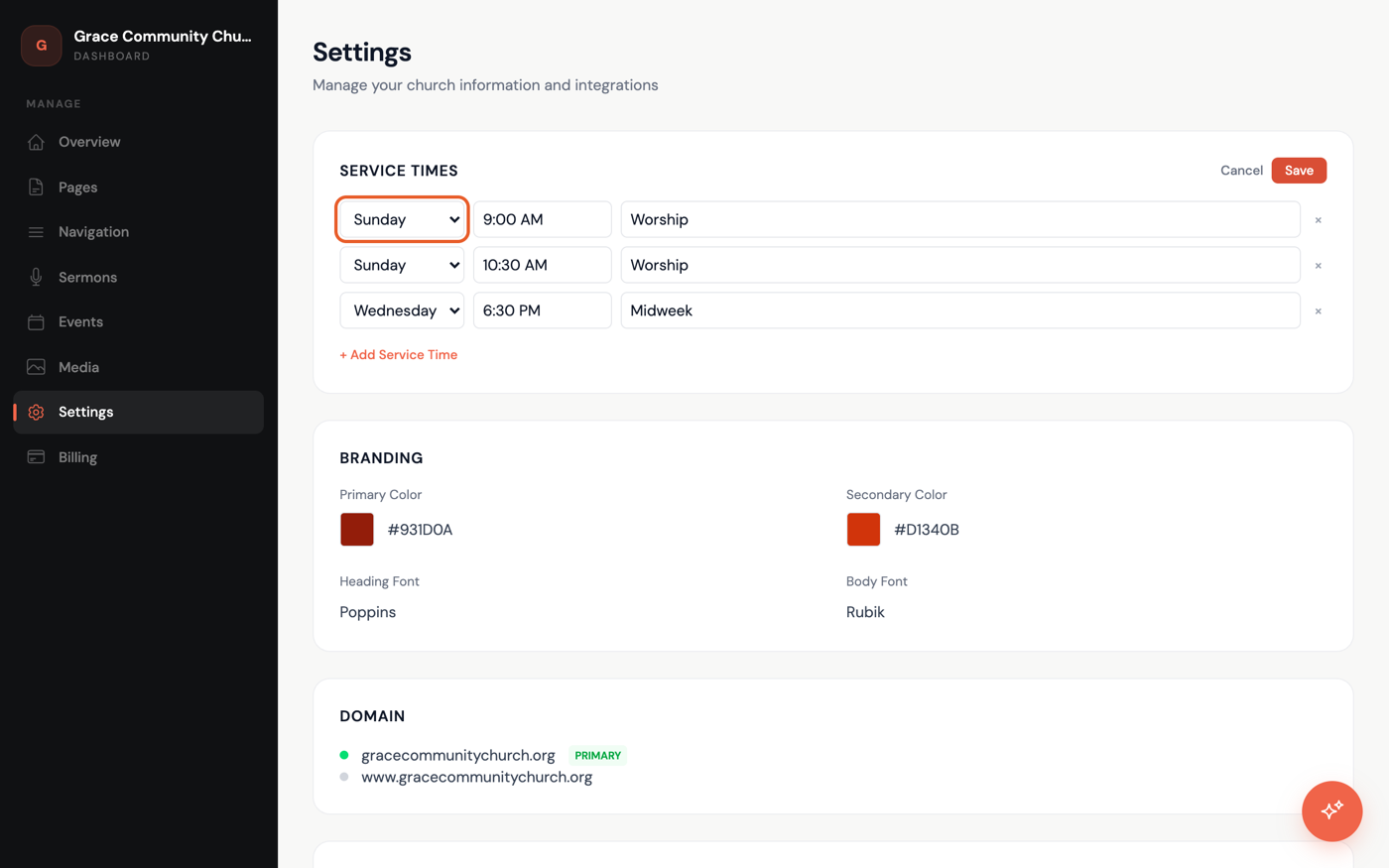
- For each row, pick the day from the dropdown and type the time into the field next to it, in the same format as the example — like "10:00 AM".
- Add an optional label, such as "Traditional" or "Contemporary", so visitors can tell services apart at a glance.
- Have more than one service? Click + Add Service Time to add another row. To remove a row you no longer need, click the × beside it.
Save and double-check
- Once everything looks right, click Save.
If you're not ready, click Cancel instead and nothing will change. Once saved, visit your homepage, footer, or Visit page to see the new times live.