
Edit the text on any page
Updated 2026-09-22
Every page on your site is built from sections — a header, a block of text, a grid of cards, and so on — and you can edit the words in any of them right from the dashboard.
Open the page editor
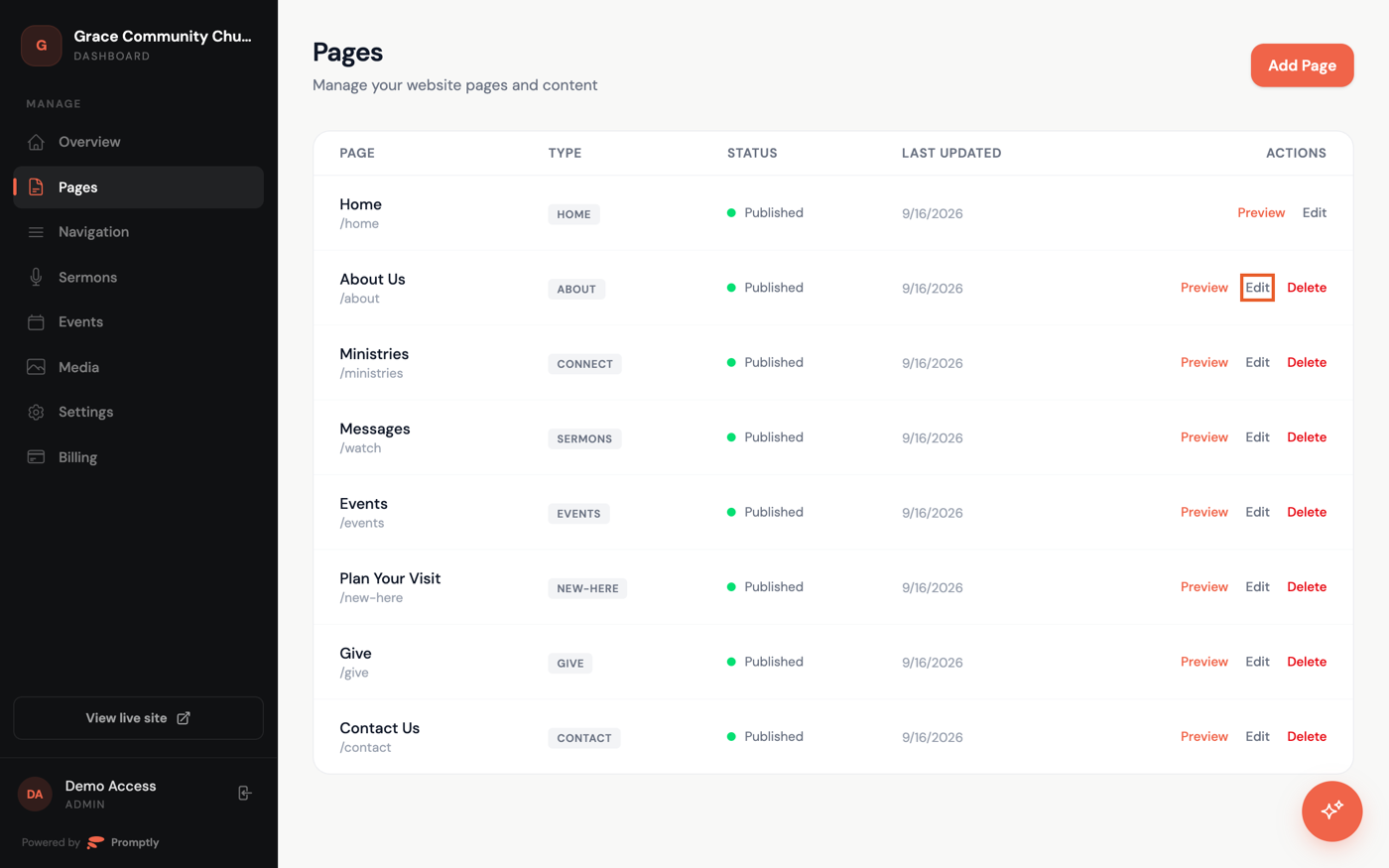
- In the dashboard sidebar, click Pages.
- Find the page you want to change and click Edit in its row.
Edit a section's text
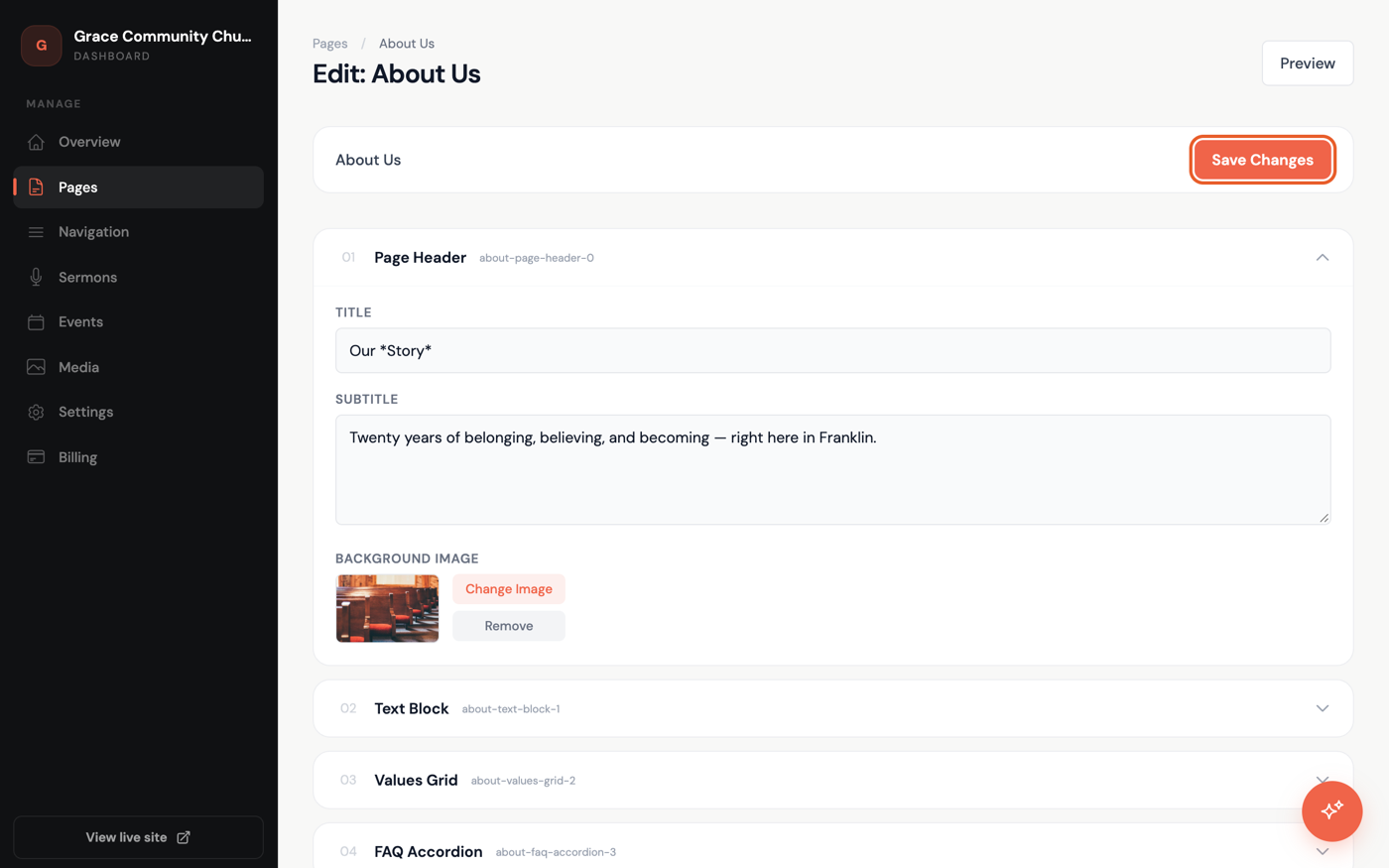
- Click a section's title bar — like Hero Banner or Text Block — to expand it.
- Change any field directly. Longer fields like Body open as a multi-line box; shorter ones like Heading are a single line.
- Click Save Changes at the top of the page when you're done.
Prefer to just ask? Open Promptly and say something like "Change the headline on the About page to..." and it edits the text for you.
Your changes go live on your published pages as soon as you click Save Changes — no separate publish step needed.