
Reorder or rename your navigation
Updated 2026-09-22
Your site's menu doesn't have to match the order your pages were created in — you control exactly what shows up, what it's called, and in what order.
Open the navigation editor
- In the dashboard sidebar, click Navigation.
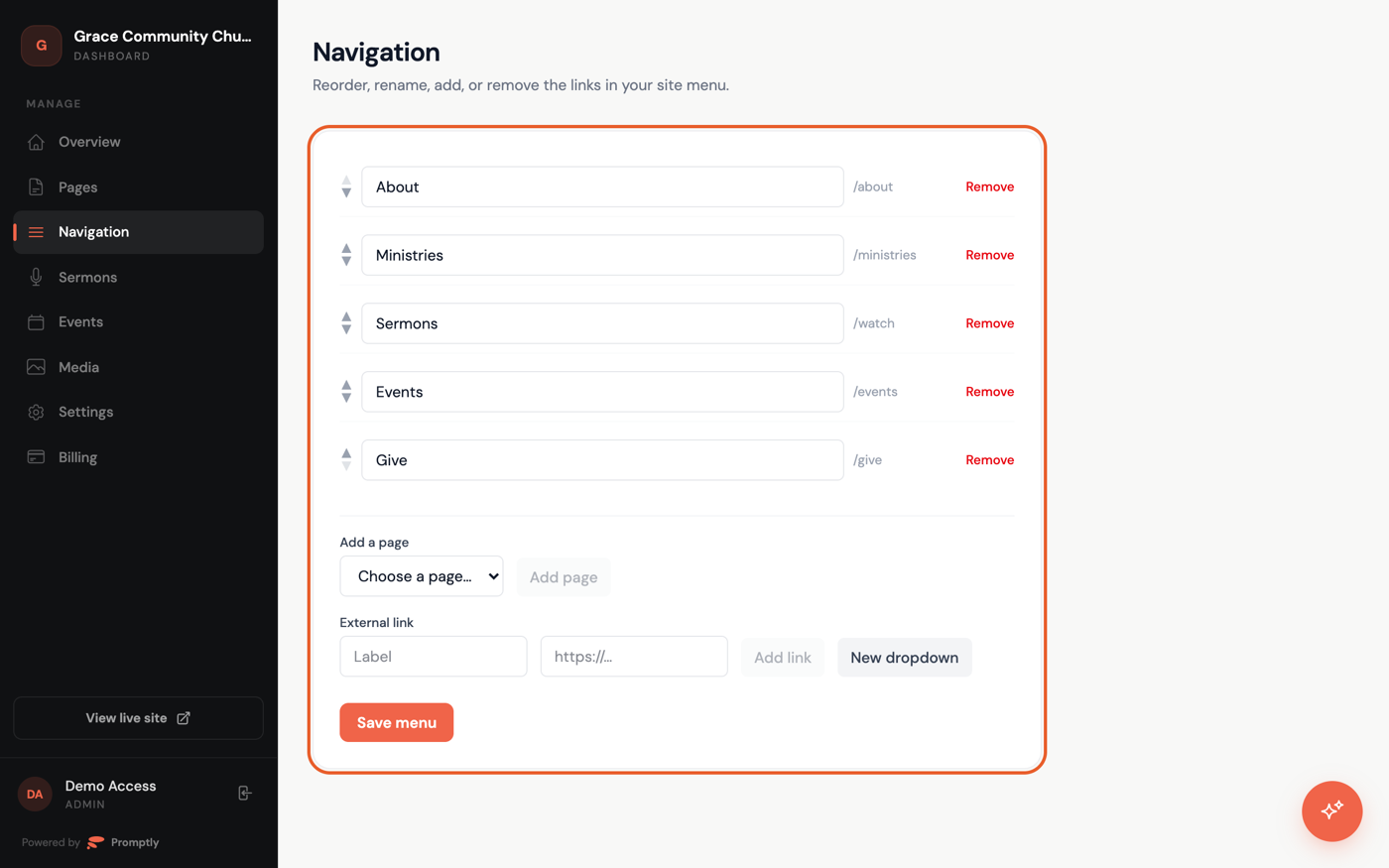
Reorder, rename, or change what's in the menu
- Use the ▲ and ▼ arrows next to any item to move it up or down.
- Click directly into an item's label field to rename it.
- Click Remove to take an item out of the menu.
- To add a page, choose it from the Choose a page… dropdown — it lists published pages that aren't already in the menu's top level — then click Add page.
- To link to another site, fill in a Label and the address, then click Add link.
- To group items under one heading, click New dropdown and give it a name. It starts empty — use each item's Move into… menu to move it inside the dropdown.
- Click Save menu when you're happy with the order.
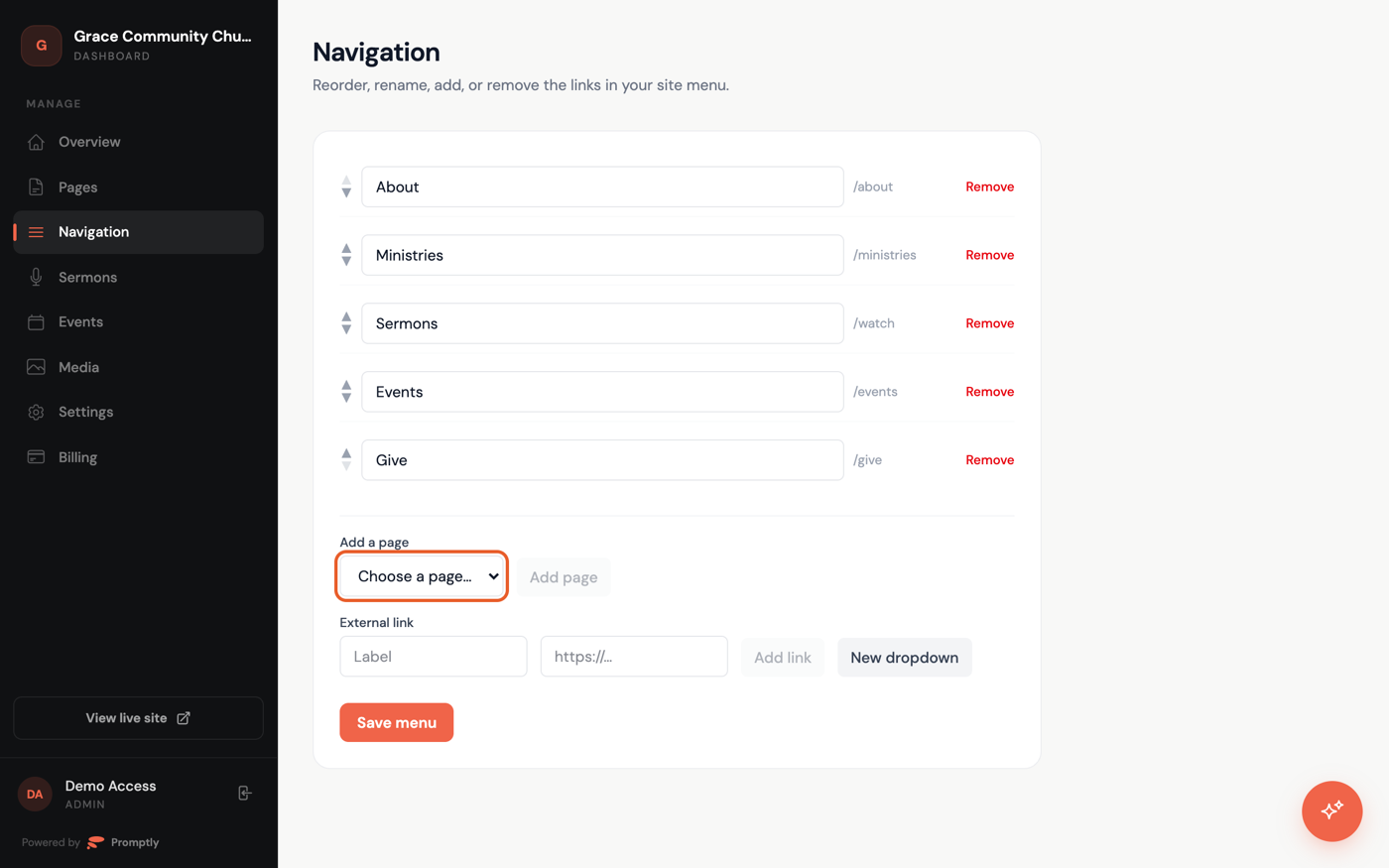
Refresh your live site to see the updated menu — removing an item from the menu doesn't delete the page itself, it just takes it out of navigation.