
Publish and unpublish pages
Updated 2026-09-22
New pages go live automatically the moment you create them. If you'd rather work on one privately first, switch it to Draft — then flip it back to Published with a single click when it's ready for visitors.
Find the page
- In the dashboard sidebar, click Pages.
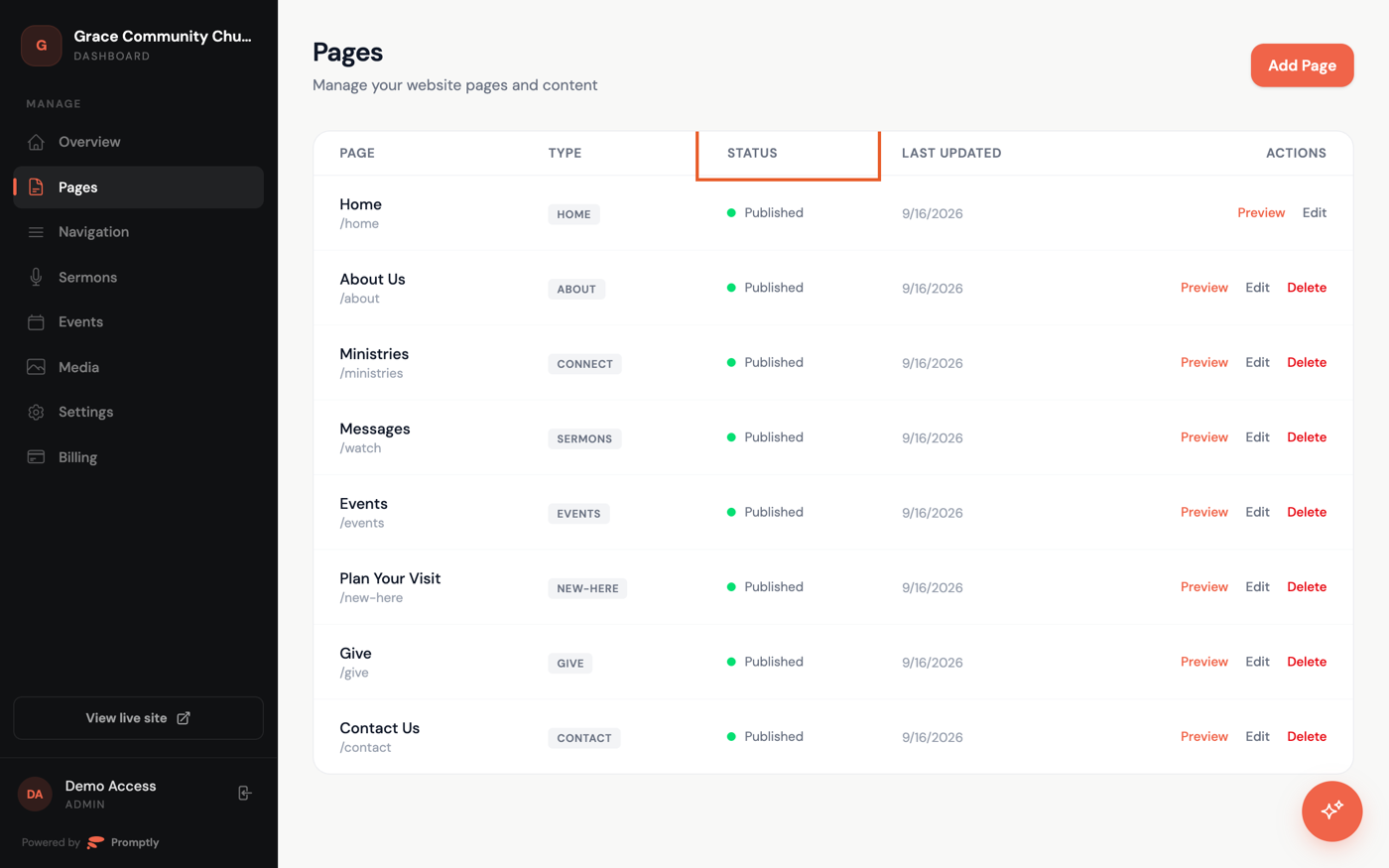
- Look at the Status column next to each page — a green dot and Published means it's live; a gray dot and Draft means it isn't.
Publish or unpublish it
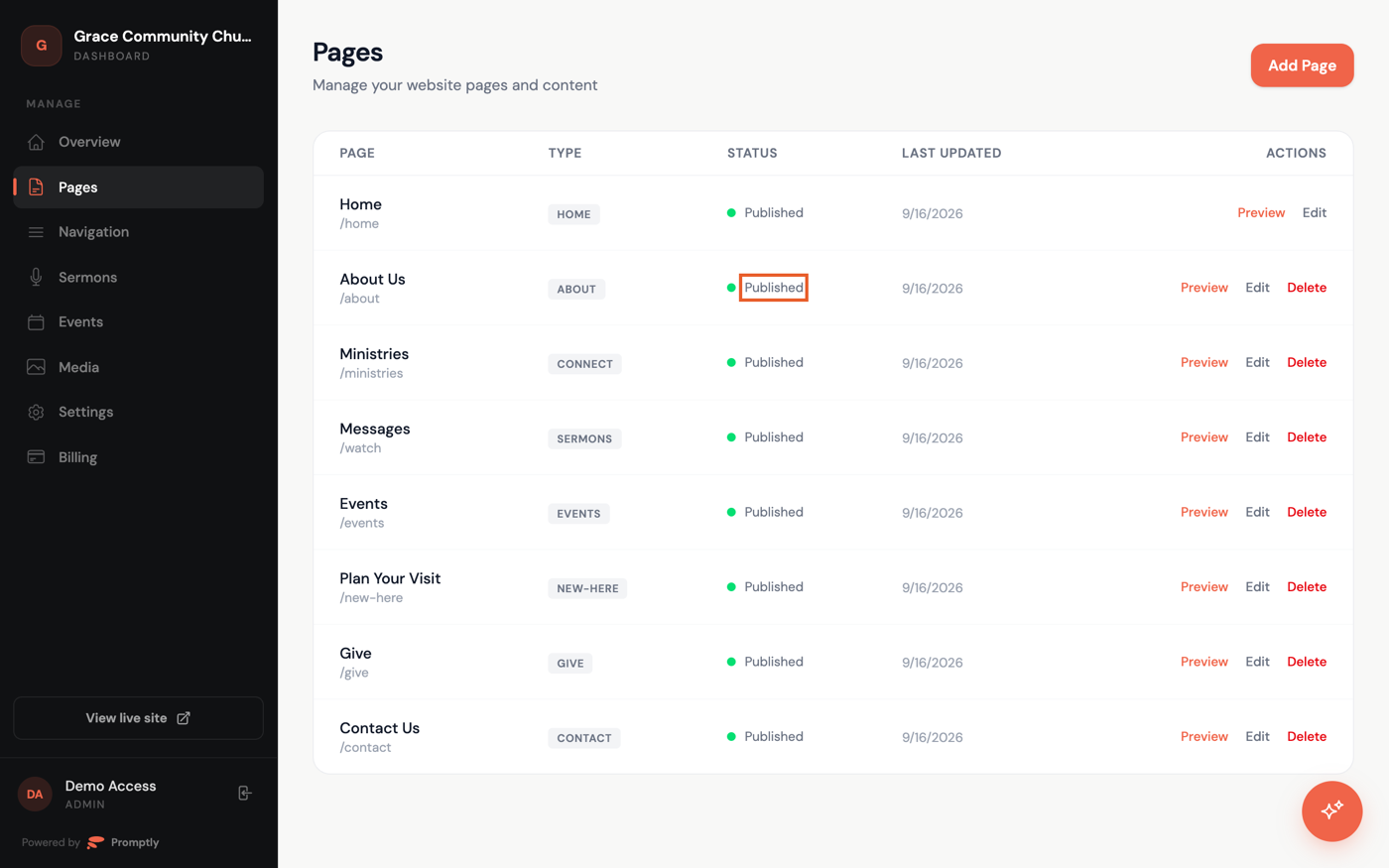
- Click the Published / Draft label itself — it flips immediately, with no separate save step.
A page only appears on your live site, footer, and menu once it's Published. Draft pages are hidden everywhere else, too — Preview only renders published pages — so a draft is visible only to you, in the dashboard, until you publish it.