
Add or edit a ministry
Updated 2026-09-22
Your ministries — Kids Ministry, Small Groups, Outreach, and any others — live as sections on one page. Look in your Pages list for the page whose address ends in /ministries; its title varies (Connect, Ministries, Get Involved), and it's usually labeled Ministries in your menu. You edit and add ministries the same way you would any other page content.
Edit an existing ministry
- In the dashboard sidebar, click Pages, then click Edit on the page whose address ends in /ministries.
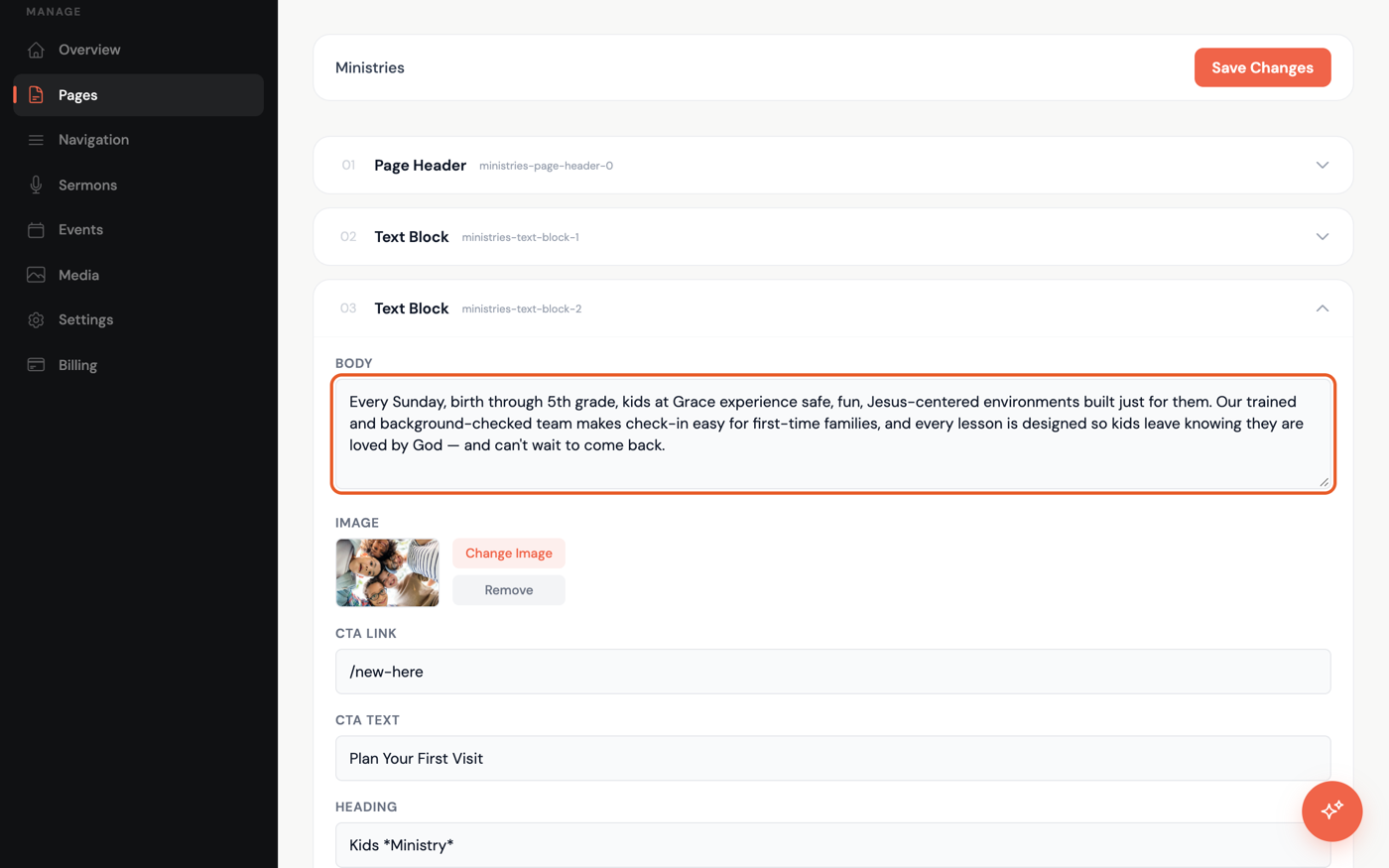
- Each section's title bar shows its type, not the ministry's name — every ministry is a Text Block section. Open one and check its Heading field to see which ministry it is (e.g. "Kids Ministry"); you may need to open a few before you find the right one.
- Update the Heading or Body text, or use Select Image / Change Image to swap the photo, then click Save Changes at the top of the page.
Add a new ministry
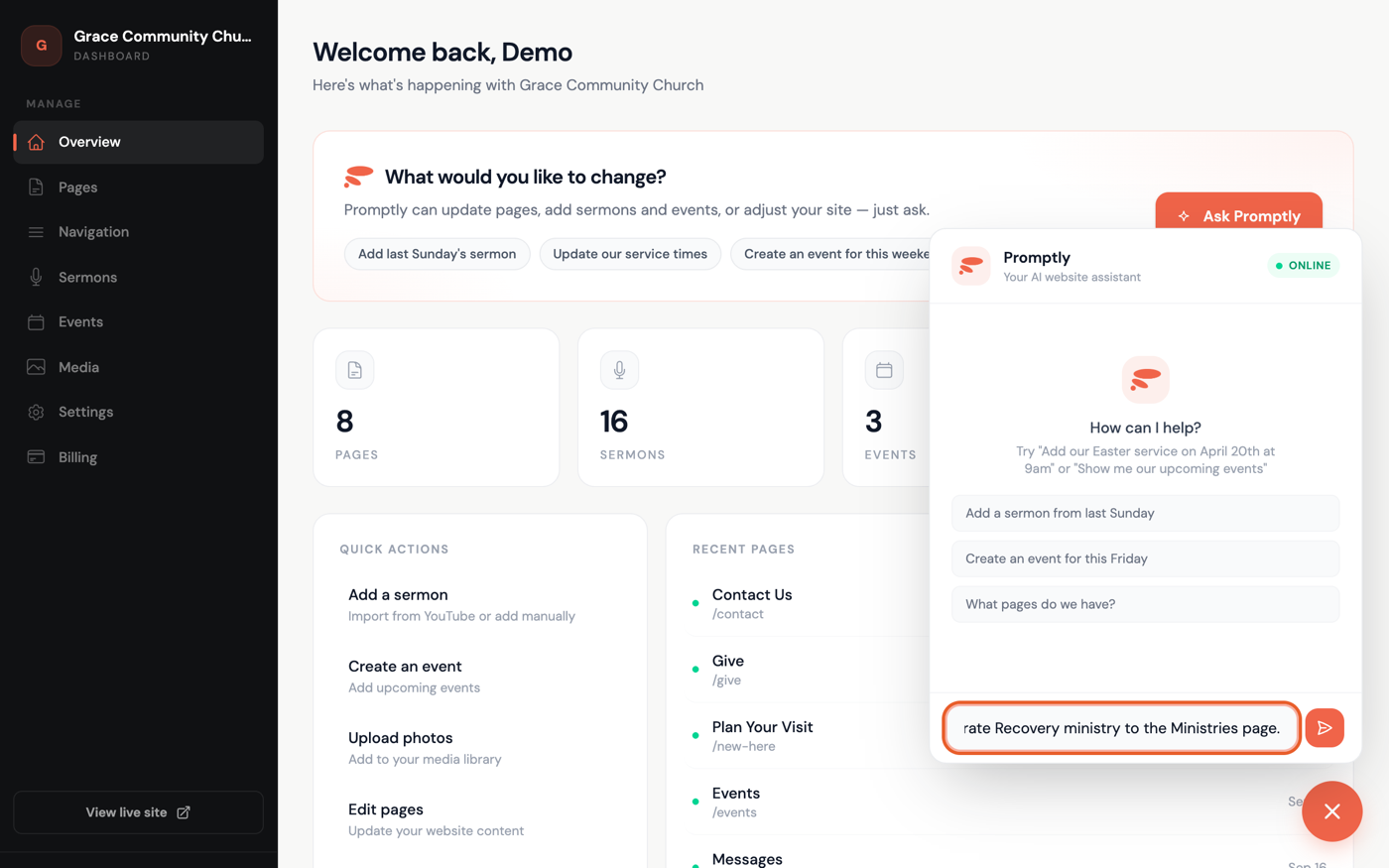
There's no separate "add ministry" button — ask Promptly instead. Open the chat and type something like "Add a section about our new Celebrate Recovery ministry to the Ministries page." Promptly will confirm before adding it — confirm when it asks, and it adds the new section itself, ready for you to edit or add a photo to.
Check Preview on that page any time to see your ministries live.