
Add a new page
Updated 2026-09-22
Need a page your template doesn't already have — a specific ministry, a special event, a new program? You can add one in a minute or two.
Start a new page
- In the dashboard sidebar, click Pages, then click Add Page in the top-right corner.
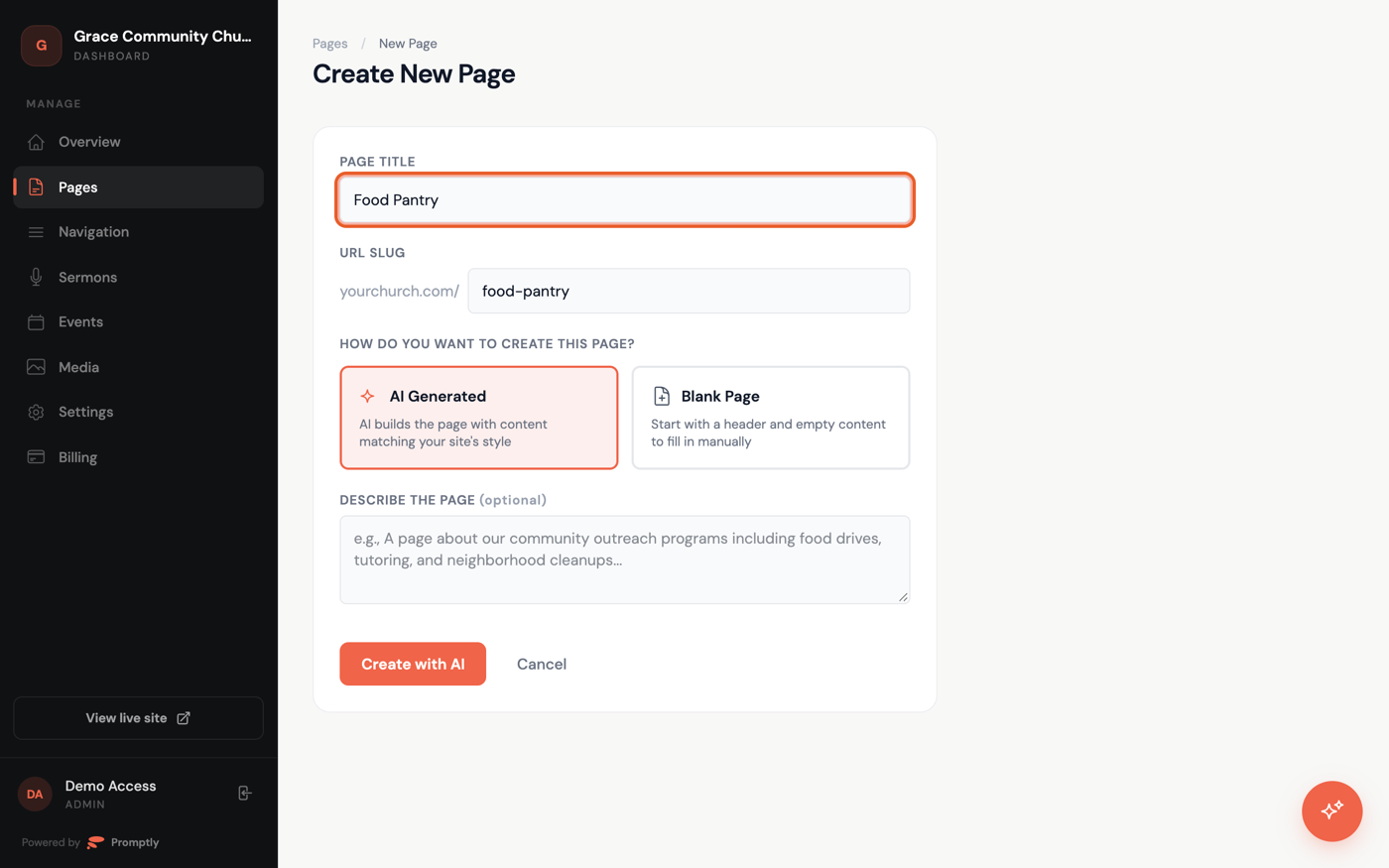
- Enter a Page Title, like "Food Pantry" or "Small Groups" — the URL Slug below it fills in automatically, and you can edit it too.
Choose how to build it
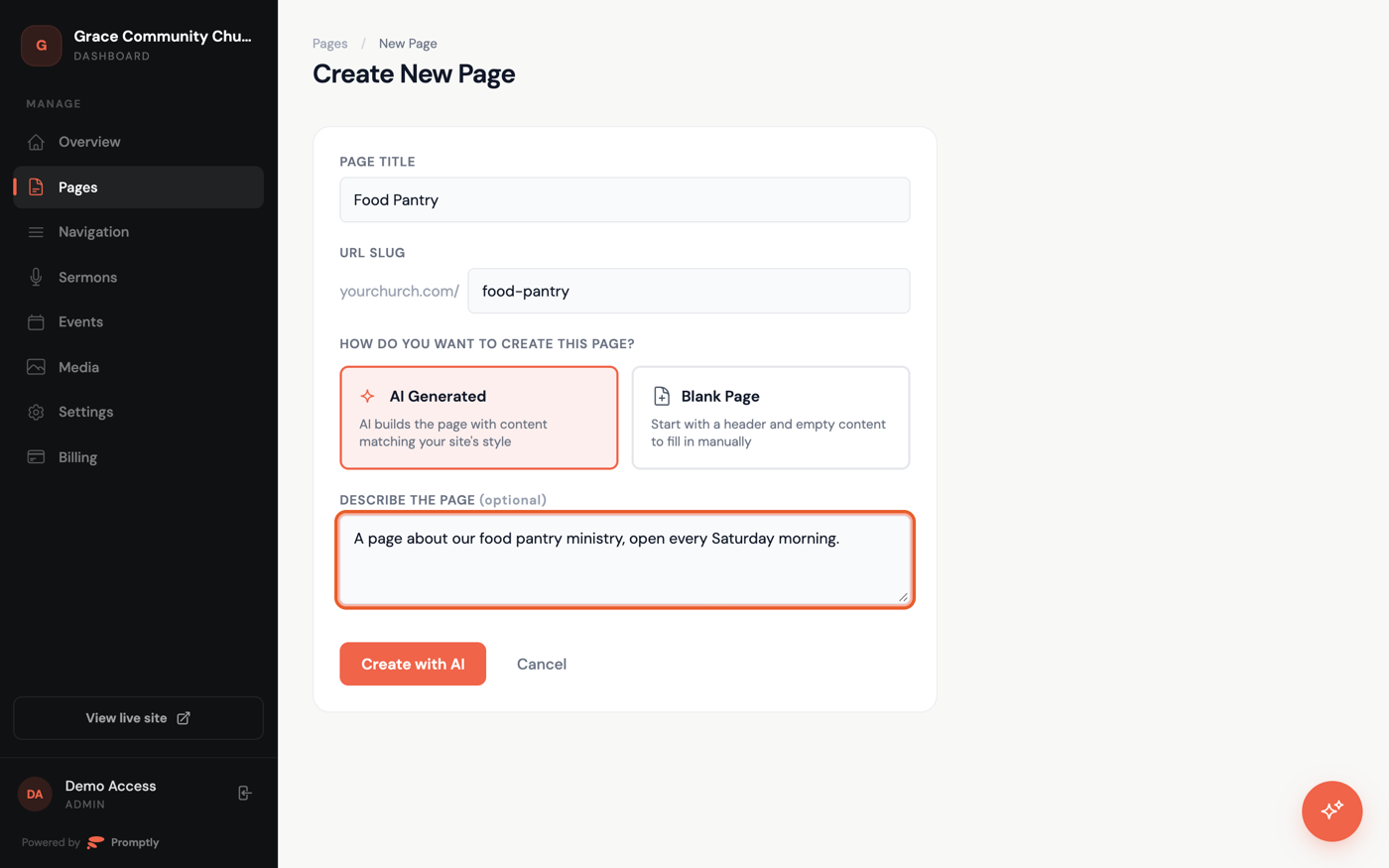
- Pick AI Generated to have Promptly write the whole page for you. Add a note in Describe the page, such as "A page about our food pantry ministry, open every Saturday morning," so it knows what to cover.
- Or pick Blank Page to start with just a header and an empty text section you fill in yourself.
- Click Create with AI (or Create Blank Page). Either way, the page is live at its web address immediately — there's no separate "publish" step for a new page.
Your new page opens straight into its editor. It won't show up in your site menu until you add it there yourself — see Reorder or rename your navigation. If you'd rather keep it hidden while you finish it, switch it to Draft — see Publish and unpublish pages. For fine-tuning the words themselves, see Edit the text on any page.