
Turn on your livestream
Updated 2026-09-22
Your Watch page can show a live stream during service and switch back to your sermon archive when you're offline — turn it on from Settings.
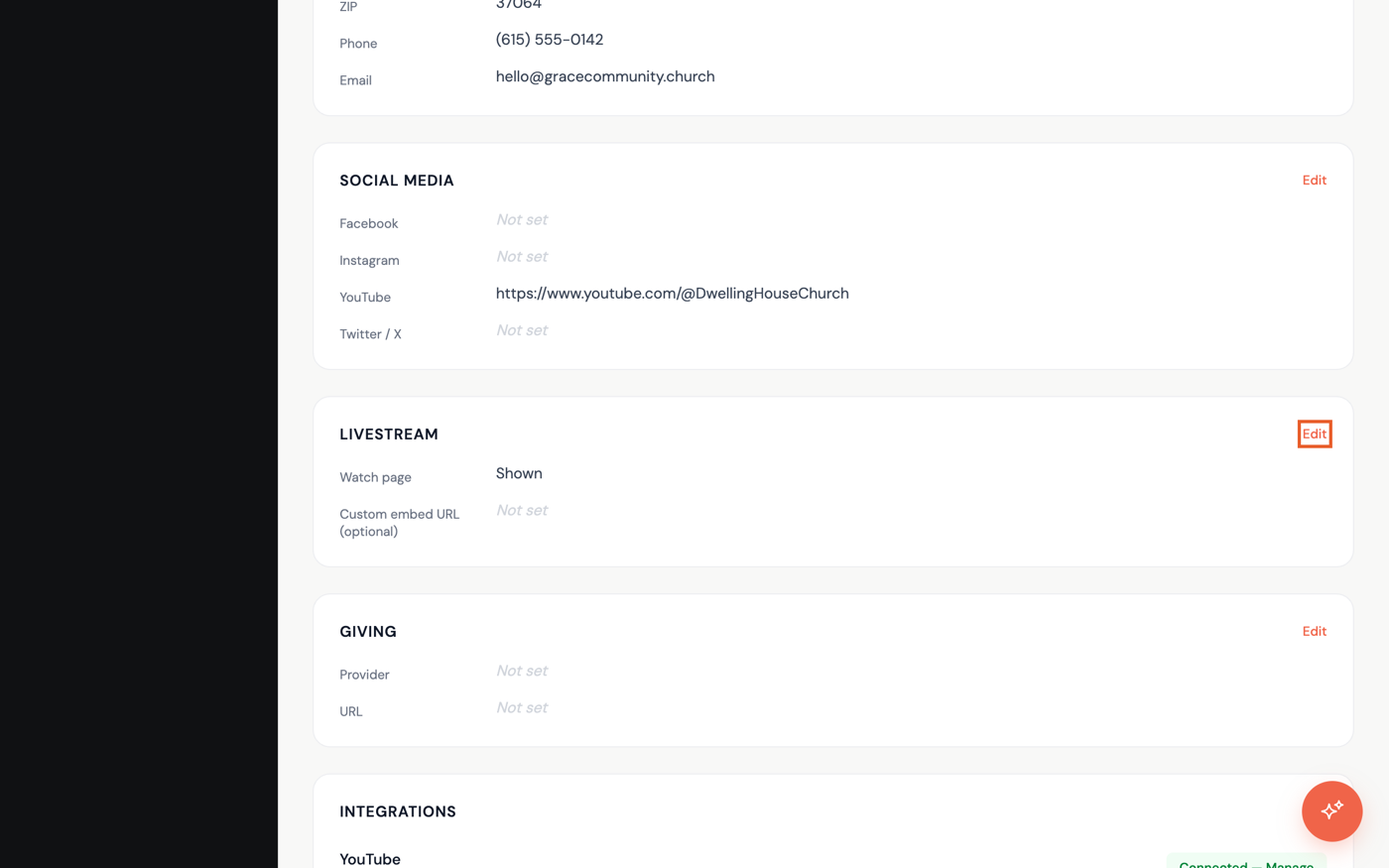
Open the Livestream card
- In the dashboard sidebar, click Settings, then find the Livestream card and click Edit in its top-right corner.
Turn it on and choose a source
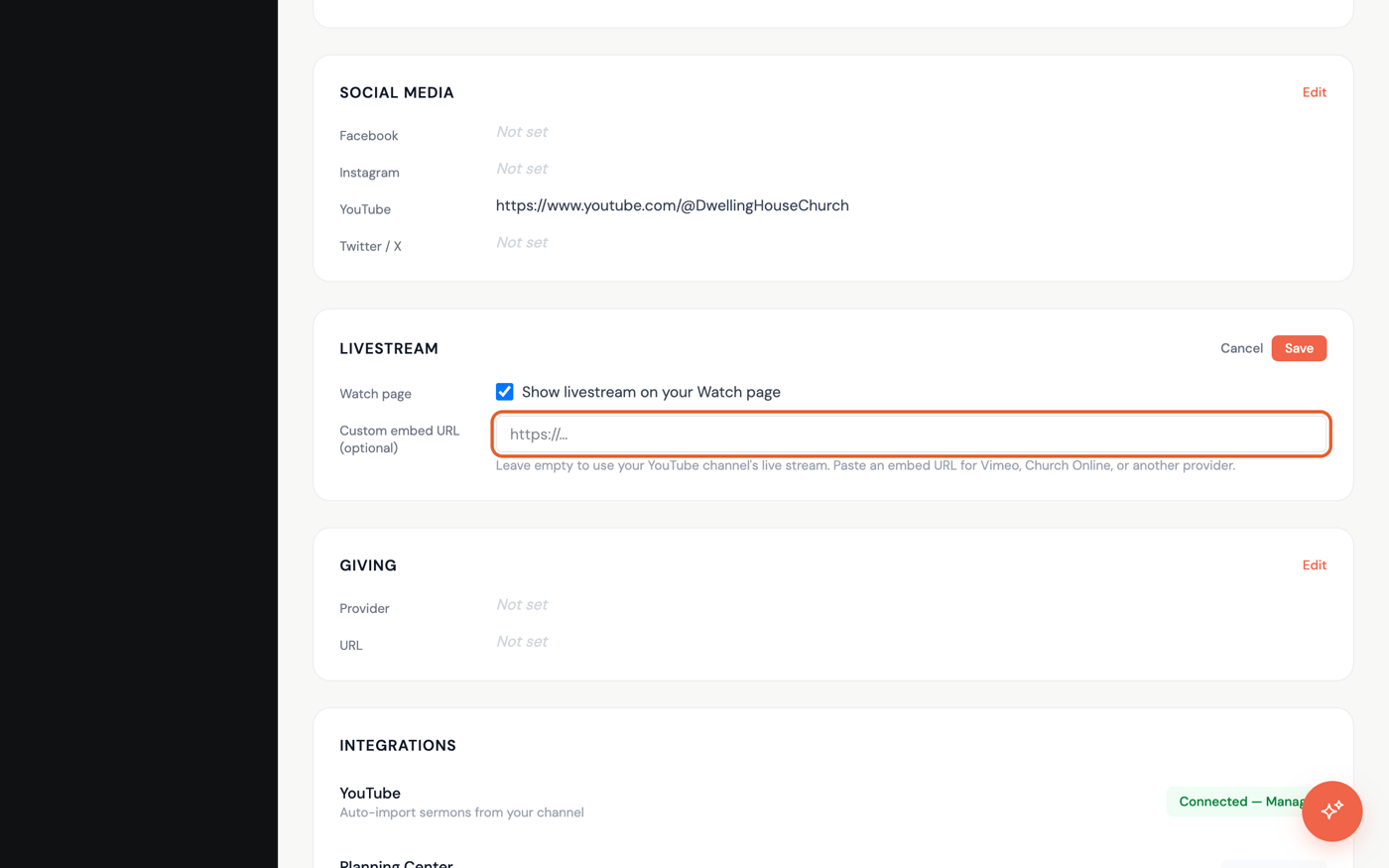
- Check Show livestream on your Watch page to enable it.
- Leave Custom embed URL empty to stream from your connected YouTube channel's live broadcast, or paste an embed URL to stream from Vimeo, Church Online, or another provider instead.
- Click Save.
If you check the toggle without a YouTube channel connected or a custom URL set, clicking Save is refused with "Add your YouTube channel URL first, or paste a custom embed URL." — connect a channel first with Import sermons from YouTube, or add a custom URL, then save again. (You may also see an amber warning banner on this card if an older setup lost its source.) Promptly also uses your service times to know when you're about to go live.