
Import sermons from YouTube
Updated 2026-09-22
If your sermons are already on YouTube, you don't have to re-enter each one by hand — connect your channel and Promptly pulls in your recent videos as sermons.
Connect your channel
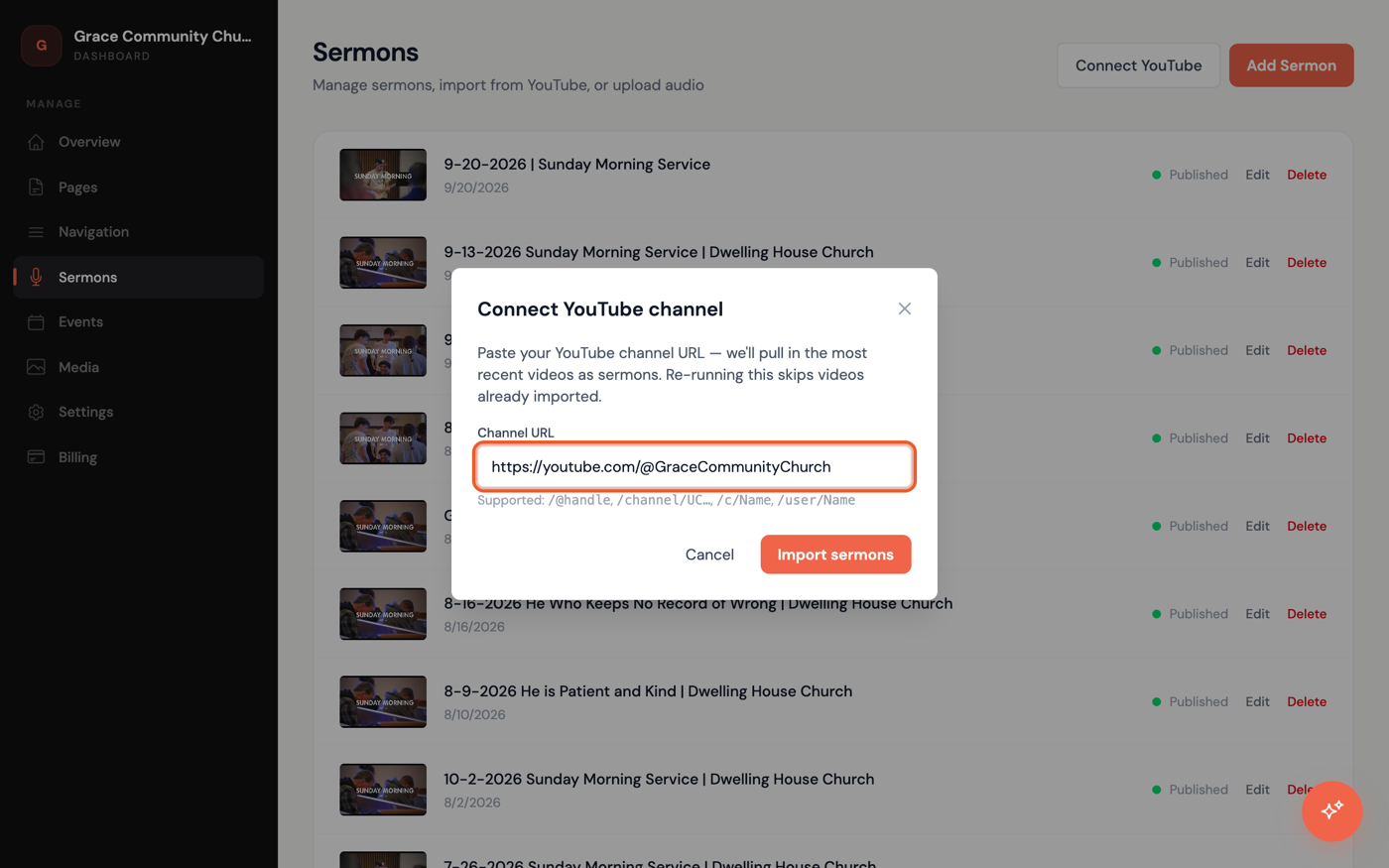
- In the dashboard sidebar, click Sermons, then click Connect YouTube in the top-right corner.
- In the Connect YouTube channel window, paste your channel's address into Channel URL — a link like
https://youtube.com/@YourChurchworks, along with/channel/UC…,/c/Name, or/user/Nameaddresses. - Click Import sermons.
Check the results
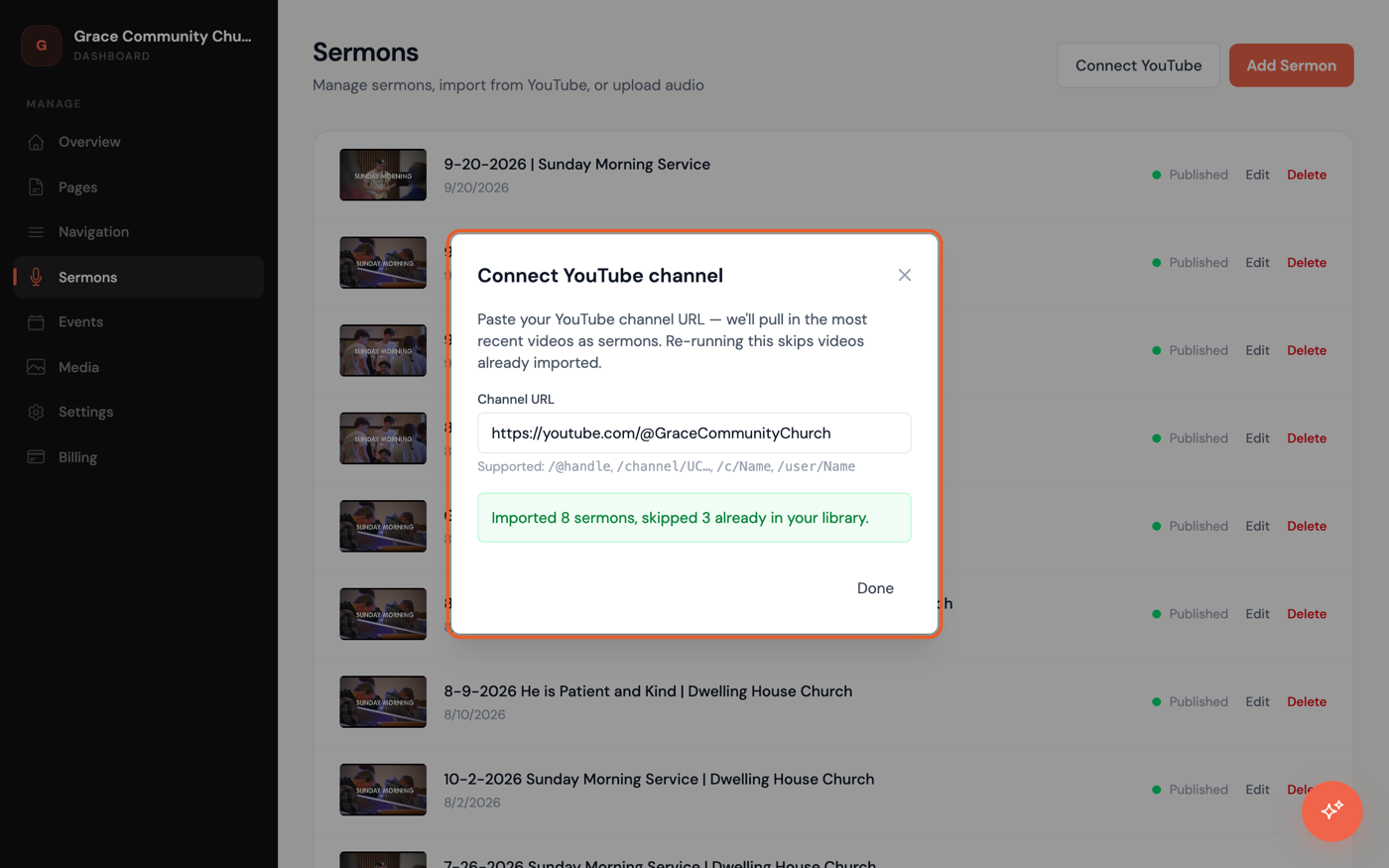
- Promptly reports how many sermons it imported, plus how many it skipped because they were already in your library.
- Click Done to close the window, or run it again any time — re-importing only pulls in videos you don't already have.
Once connected, your channel also shows as Connected — Manage under Integrations on the Settings page. Imported sermons are published right away — to touch up a title, speaker, or scripture reference afterward, see Add a sermon manually; editing works the same way.