
Add a sermon manually
Updated 2026-09-22
Not every sermon comes from YouTube — add one directly when you want full control over the details, or when it isn't on YouTube at all.
Open the sermon form
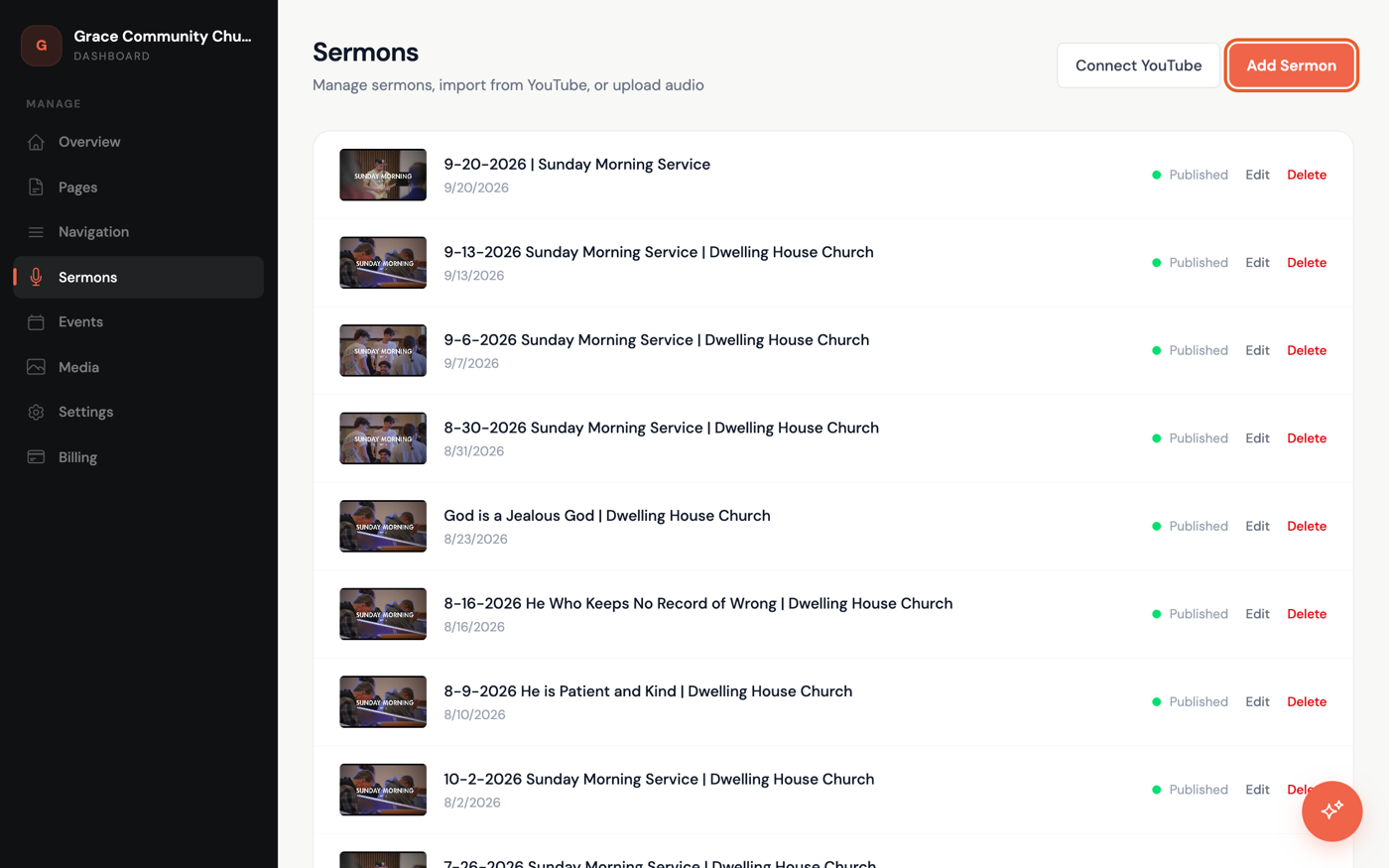
- In the dashboard sidebar, click Sermons, then click Add Sermon in the top-right corner.
Fill in the details
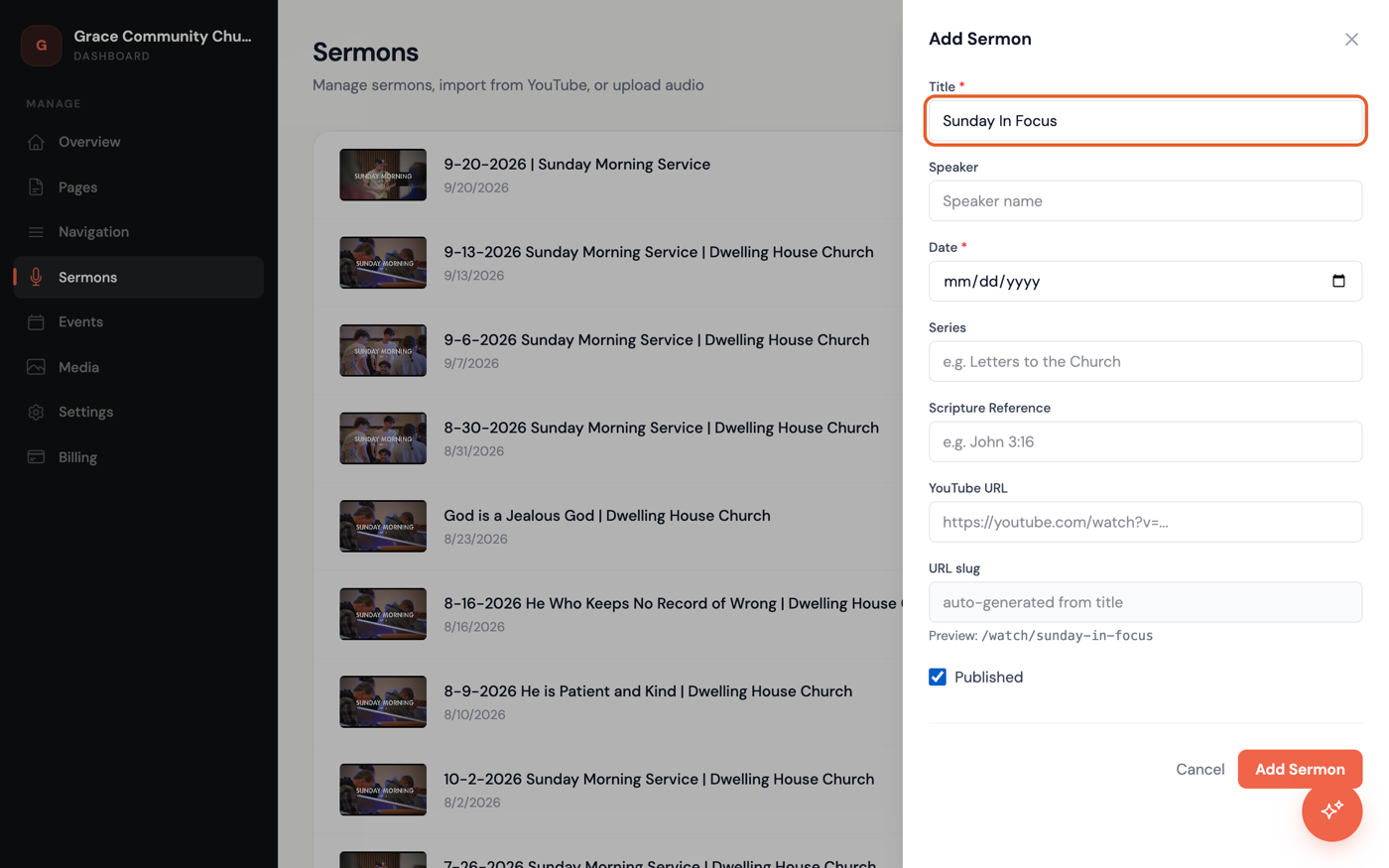
- Enter a Title and a Date — these are the only two required fields.
- Add a Speaker, Series (like "Letters to the Church"), and Scripture Reference (like "John 3:16") if you have them.
- Paste a YouTube URL if the sermon has a video, even if you didn't import it through Connect YouTube.
- The URL slug box shows "auto-generated from title" until you save — a preview line underneath already shows what your sermon's address will look like, built from the title.
- Check Published to make it visible on your site now, or leave it unchecked to save it as a draft.
- Click Add Sermon.
To change any of this later, click Edit next to the sermon in your list — the same form opens, and the button becomes Save Changes. Want a custom URL slug instead of the auto-generated one? It's only editable once the sermon exists: after saving, click Edit, then click Edit slug to unlock the field. Want sermons added for you instead? See Import sermons from YouTube.