
Upload photos and swap images
Updated 2026-09-22
Most of the photos on your site live in one place — your media library. (A photo Promptly finds for you from the stock library, or one you paste in as a URL, can be used directly without ever landing there.)
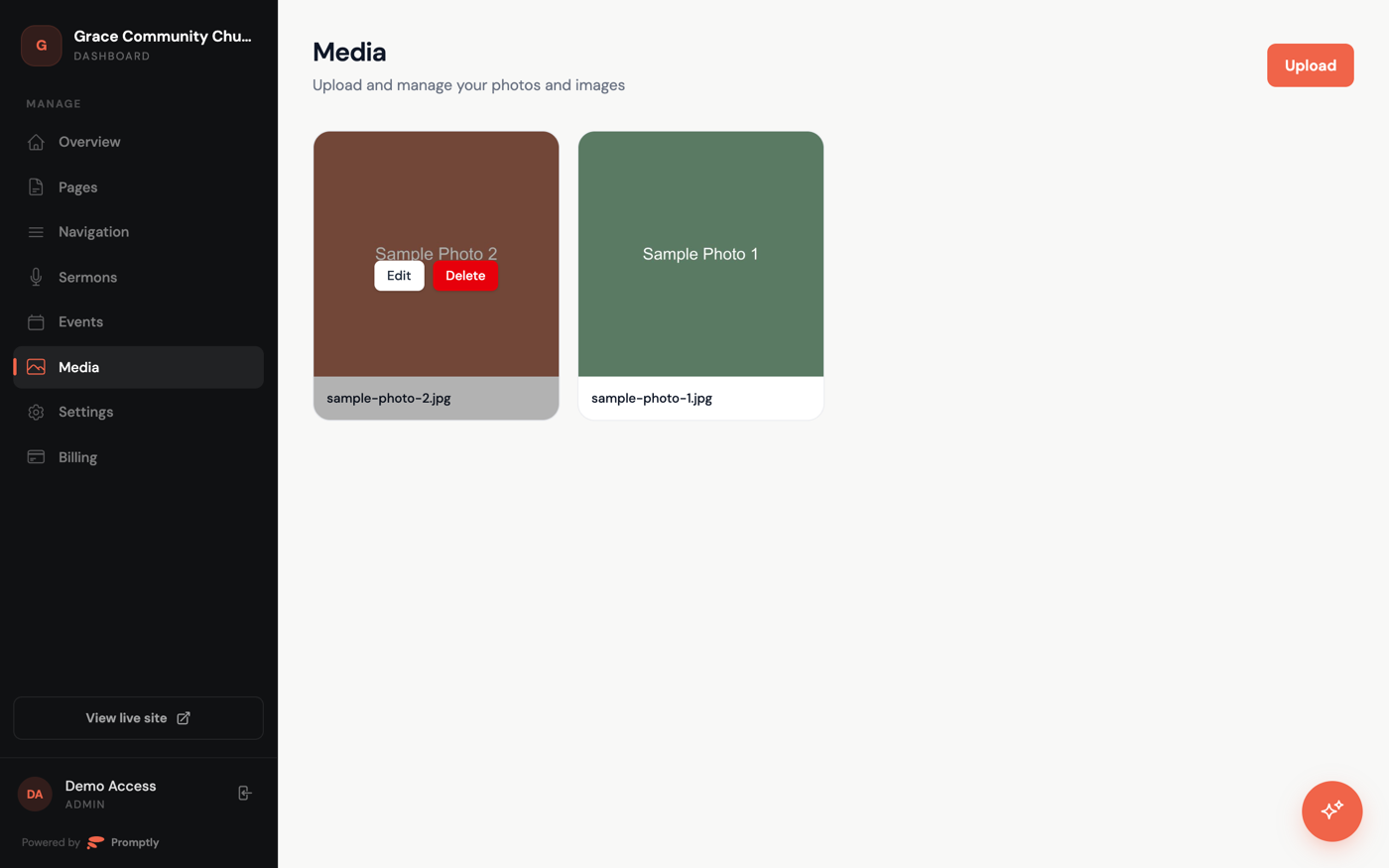
Upload to your library
- In the dashboard sidebar, click Media, then click Upload in the top-right corner — or Upload Photos if your library is empty.
- Choose one or more image files.
- Hover any photo to Edit its alt text — a short description used for accessibility — or Delete it.
Swap a photo on a page
- Open the page in the page editor and expand the section with the image you want to change.
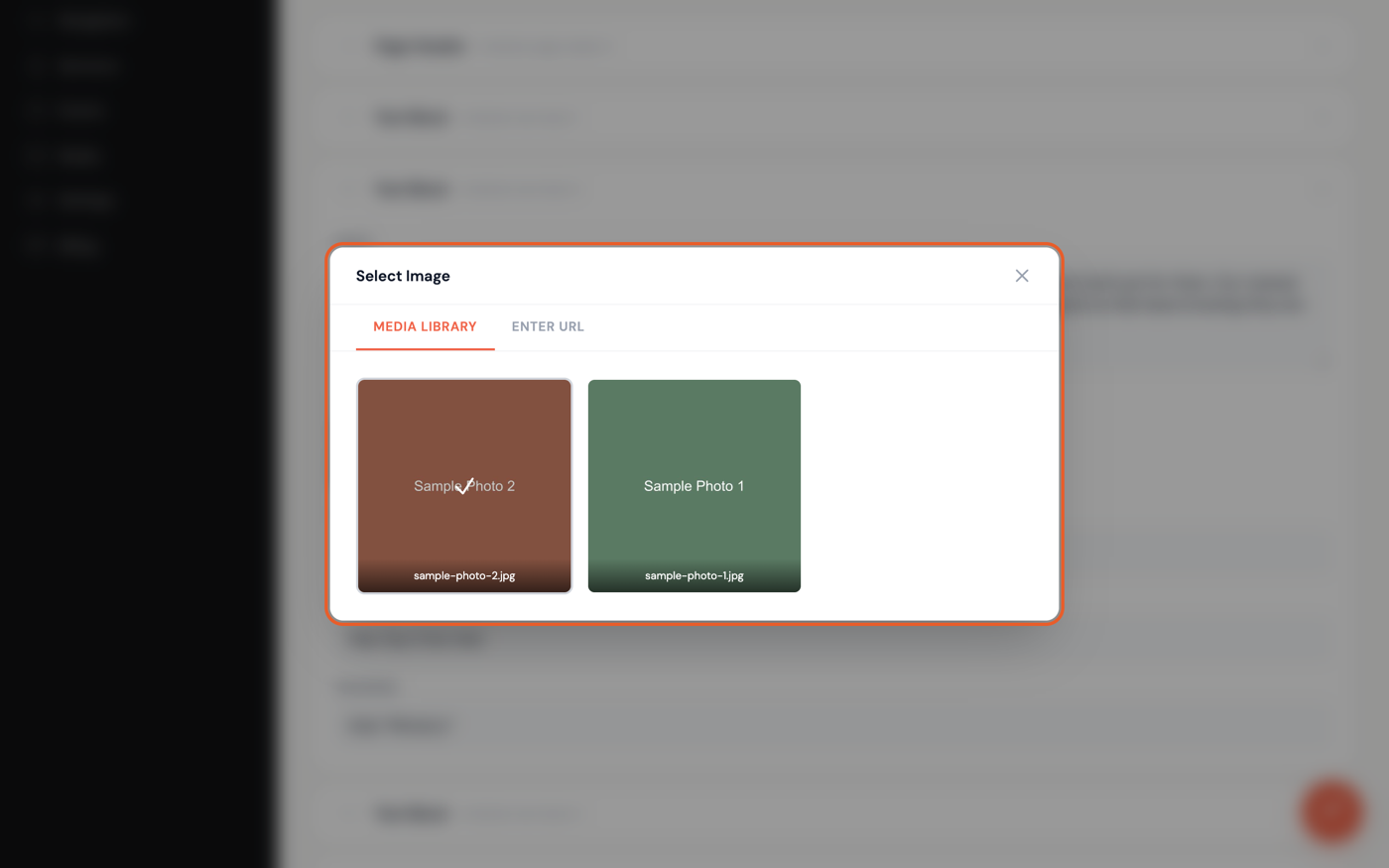
- Click Select Image (or Change Image if one's already set).
- On the Media Library tab, click any photo to use it right away.
- Or switch to the Enter URL tab, paste a link, and click Use This Image.
- Click Save Changes at the top of the page.
Prefer to just ask? Open Promptly and say something like "Find a photo of a worship service for the hero section" — it searches stock photos, shows you options, and sets the one you pick once you confirm.