
Edit or delete an event
Updated 2026-09-22
Plans change — update an event's details any time, or take it off your calendar when it's over.
Edit an event
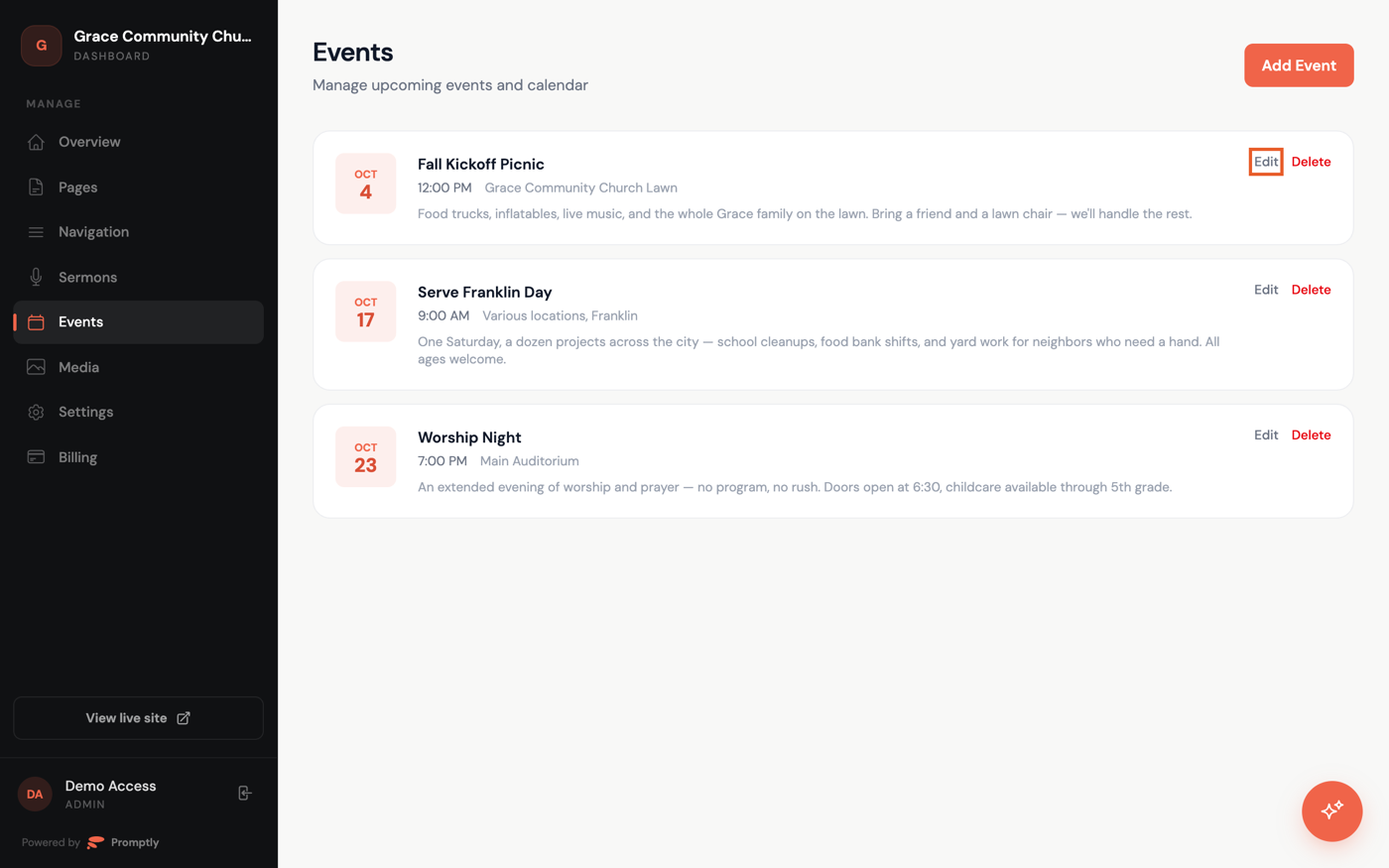
- In the dashboard sidebar, click Events.
- Find the event and click Edit next to it — the same form you used to create it opens, filled in with its current details.
- Make your changes and click Save Changes.
Saved changes go live right away — there's no separate publish step — so double-check the date, time, and registration link before saving.
Delete an event
- Click Delete next to the event.
- In the Remove Event window, click Remove to confirm.
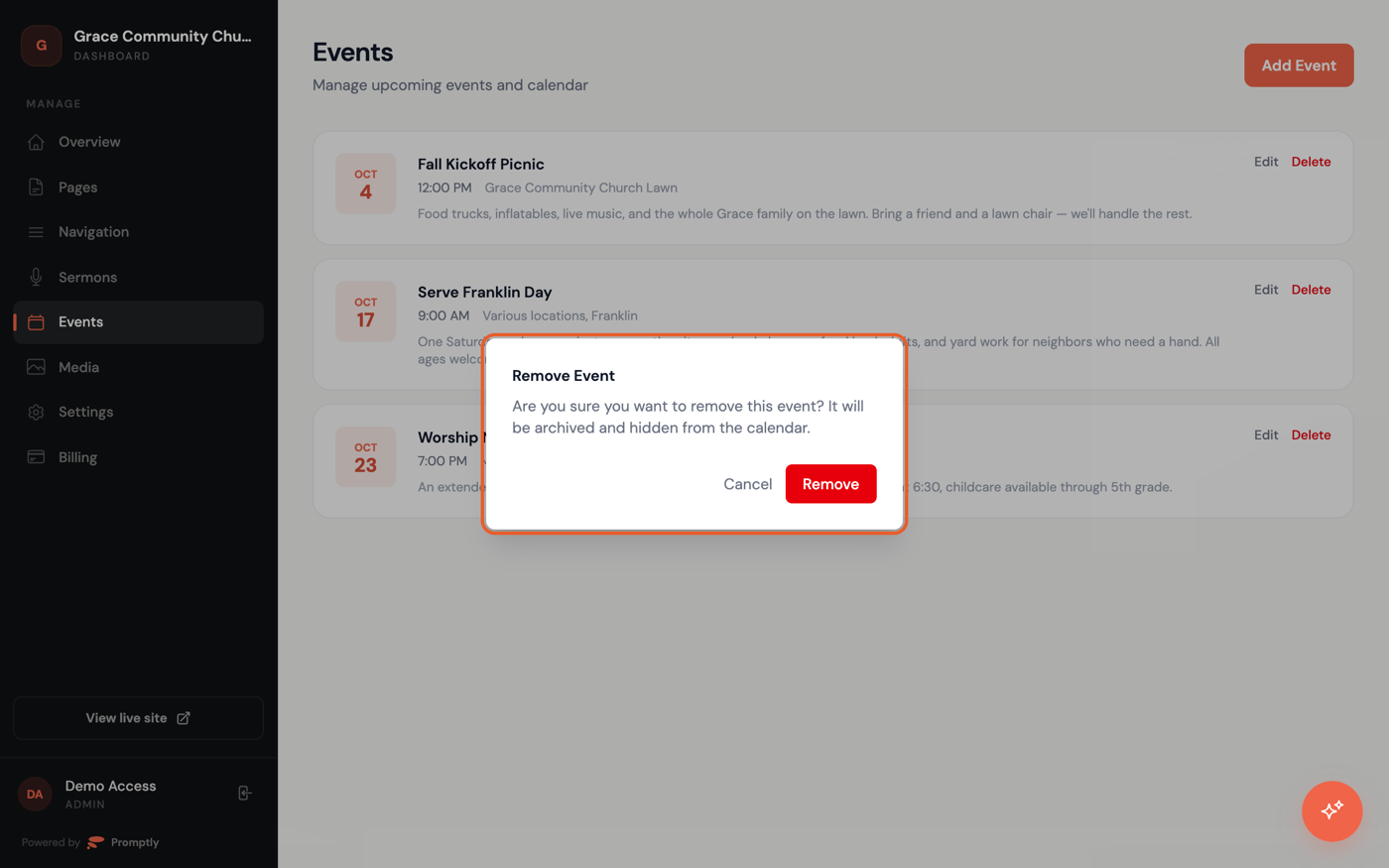
Removing an event archives it rather than erasing it: it disappears from your calendar and its page stops being reachable on your live site, but the record itself isn't gone from your account. There's no button to bring an archived event back through the dashboard, so if you deleted one by mistake, recreate it with Add an event.