
Upload your logo
Updated 2026-10-30
Your logo appears in your site's navigation and footer. You can set or replace it yourself any time, with no need to touch your pages. The new logo takes over everywhere the old one appeared.
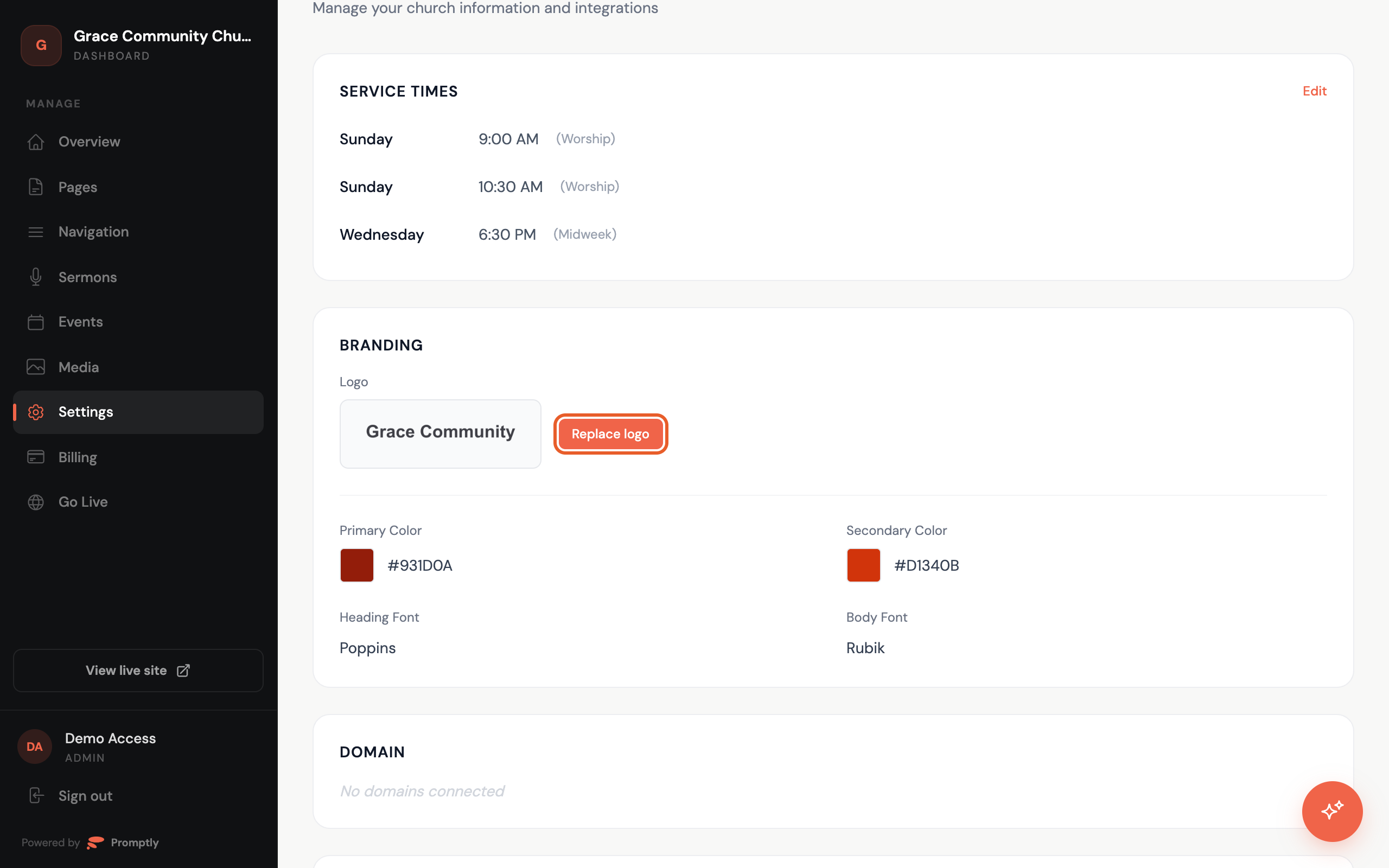
Replace your logo in Settings
- In the dashboard sidebar, click Settings, then find the Branding card.
- Click Replace logo and pick a file from your computer.
- Wait a moment. Your new logo shows in the card once it's uploaded, and your site picks it up automatically.
Tips for a great logo:
- A PNG with a transparent background looks best. PNG, JPG or WebP files work, up to 4 MB.
- SVG files aren't accepted. Export a PNG instead.
- Use the largest, sharpest version you have so it looks crisp on every screen.
Don't have a logo?
No problem. If your church doesn't have a logo yet, click Use our church name instead in the Branding card. Promptly shows your church name as a simple text logo in your site's fonts and colors. You can upload a real logo whenever you're ready.
That button only appears while you don't have a logo uploaded.
Or just send it to Ask Promptly
Prefer chatting? Open Ask Promptly, say "Here's our new logo," and attach the file. Promptly swaps it in for you.
During setup
When your site is first built, Promptly asks about your branding and shows a Drag and drop your logo here area right in the chat. Drop your file there, or click Browse files, and Promptly uses it across your site.